Workspaces & teams
Switch between personal and team workspaces
Choose the right space for solo work or collaboration.
The names, email addresses, and team details shown are fictional examples for illustration.
Before you start
A workspace keeps your research and data together. Use a personal space for solo work and a team space for collaboration. With only one workspace, you can start without switching.
Which workspace should you use?
Step by step
-
Check the current workspace at the top
If you're in a team, select the workspace name at the top of Studio. Narrow screens open a switching list. If there's no selector, you can keep working in the current space.
-
Choose your personal space or a team
Choose a workspace from the list. A checkmark identifies the current space on wide screens; narrow-screen lists show the current selection.
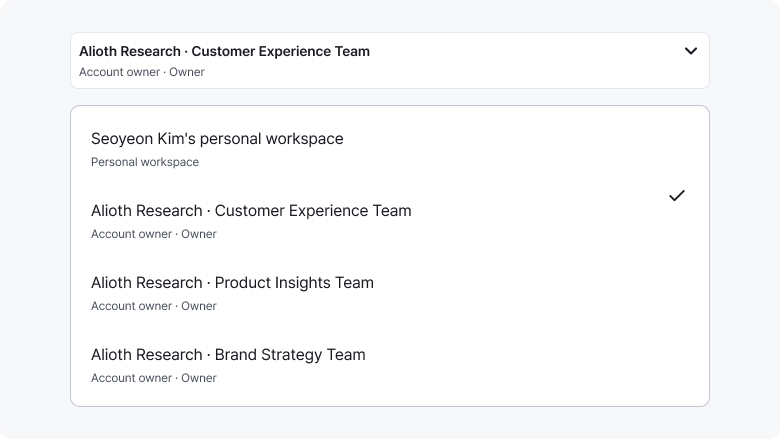
Check the top name and list checkmark. Select another workspace name to switch. Enlarge image ↗ -
Check the name and research list again
Make sure the top name matches your chosen space. Checking before creating or distributing helps avoid working in the wrong team.
Check that you're done
You're ready when the intended name and that workspace's research list are displayed.
If you need help
Team missing? Check you're signed in with the invited email and have accepted. If the team appears but features are unavailable, ask the administrator to check your role.
Was this guide helpful?
Tell us if something was unclear or missing.
Send feedback on this guide →