Workspaces & teams
Members, invitations and roles
Invite colleagues and give each person a role that fits their work.
The names, email addresses, and team details shown are fictional examples for illustration.
Owners and workspace administrators manage teams linked to the operating account. Team administrators manage their own team’s information and members.
Before you start
Switch to the team you want to invite colleagues to. Workspace contains Team members and Invitations. Menus and management actions depend on your role.
Choose roles to fit the work
Step by step
-
Start a member invitation
Select Invite member in Team members and enter your colleague's email in the invitation screen.
-
Select the role for their responsibilities
Choose Team administrator, Editor, Analyst or Viewer, then Send invitation. Ask your colleague to sign in with that email and accept.
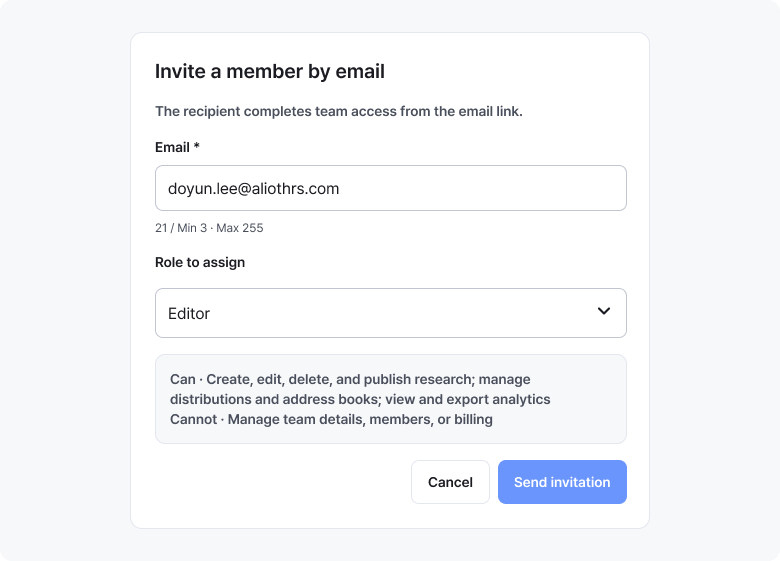
Check email and role before sending. The text below each role explains what it allows. Enlarge image ↗ -
Check invitation status
Invitations shows awaiting and declined invitations. Accepted members appear in Team members. Cancel an incorrect invitation with × beside the email, then invite again.
-
Manage roles and membership
The shield button beside a colleague changes their role. The person-minus button removes team access. Check responsibilities and handover first.
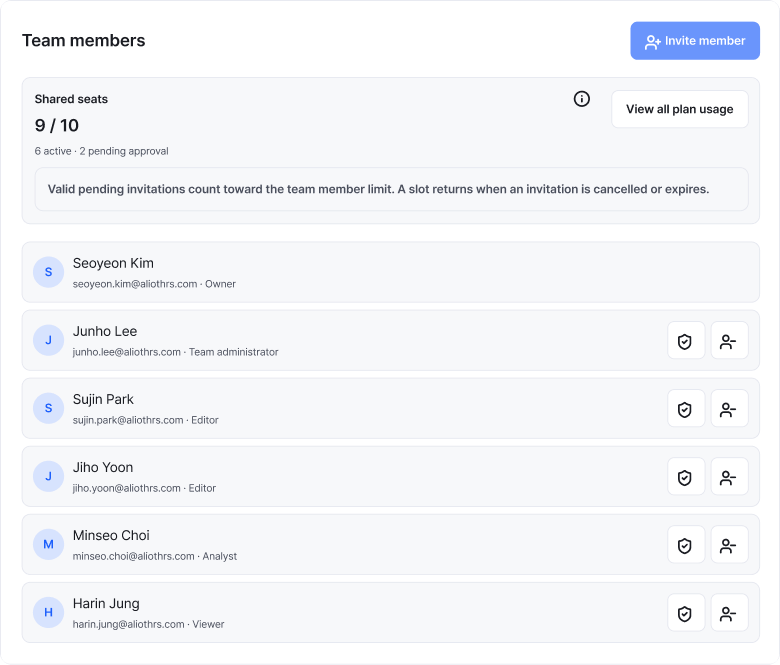
The shield changes a member's role; person-minus removes access. These aren't shown for yourself or the owner. Enlarge image ↗
Check that you're done
After inviting, check the email and role in Invitations. Once accepted, check the name and role in Team members.
If you need help
Can't invite? Check the shared-seat limit and plan notice. Missing management actions? Ask the team administrator. If a colleague can't open an invitation, check the email, expiry and cancellation, then reinvite if needed.
Was this guide helpful?
Tell us if something was unclear or missing.
Send feedback on this guide →