Workspaces & teams
Set up and manage a team
Create a team, update its details and understand leaving versus deleting.
The names, email addresses, and team details shown are fictional examples for illustration.
Owners and workspace administrators manage teams linked to the operating account. Team administrators manage their own team’s information and members.
Before you start
Use a team workspace to collaborate. Creating a team requires a plan with team features and the right permission. If already invited, check that invitation before creating another team.
Step by step
-
Create a team
Open Workspace and select the account that will own the team. Choose Create team in the account area and check the account name in the dialog. Enter a team name, then choose Create team to finish.
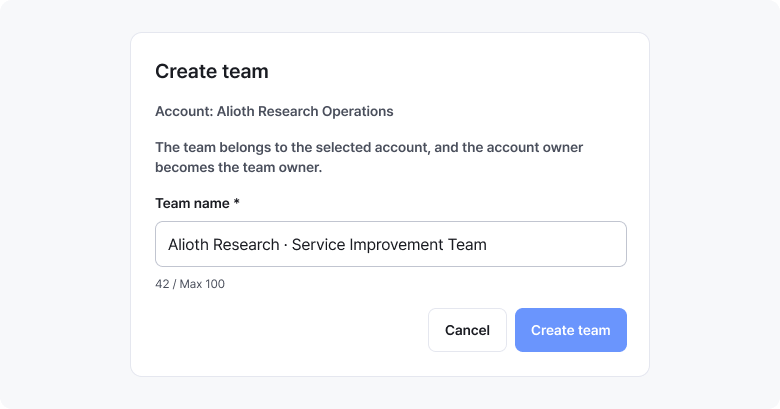
This example starts from the selected account. Check the account name, enter a team name, then choose Create team. Enlarge image ↗ -
Select your new team as the workspace
Choose the new team in the top workspace list. Check that Current workspace on the workspace-and-team screen shows its name.
-
Update team information
Select Edit information in Team information. Use a clear name and confirm. Check the updated name in the current workspace.
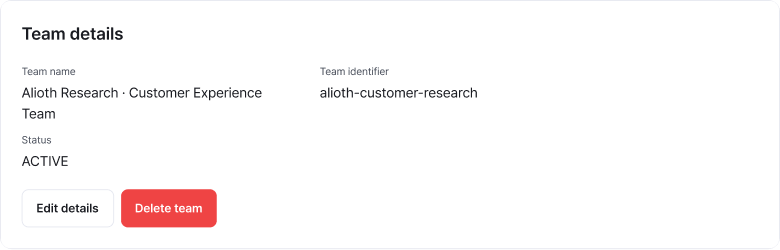
Check the name and identifier in Team information. Use the edit action to change the name. Enlarge image ↗ -
Decide whether to leave or close the whole team
Use Leave team to end only your participation. To close the whole team, the owner or workspace administrator uses Delete team. Read the confirmation and enter the team name exactly.
Leaving and deleting have different effects
Check that you're done
After creating or editing, check the workspace name and team details. After leaving, check that you're in your personal workspace.
If you need help
Missing creation or edit buttons? Check your plan and role, or ask the administrator. Team administrators alone can't delete teams; ask the owner or workspace administrator.
Was this guide helpful?
Tell us if something was unclear or missing.
Send feedback on this guide →