Workspaces & teams
Accept or decline a team invitation
Sign in with your invited email, review the team and role, and decide whether to join.
The names, email addresses, and team details shown are fictional examples for illustration.
Before you start
Have your team invitation email ready. Sign in with the same email that was invited. If you don't have an account, sign up and verify that address, then reopen the invitation.
Step by step
-
Open the invitation link
Follow the team invitation link in your email. If asked, sign in with the invited address. Keep the link for your own use; don't forward it.
-
Check the team and role
On the invitation-review screen, check the team, invited email, assigned role and expiry. Make sure it's a team you know and a suitable role.
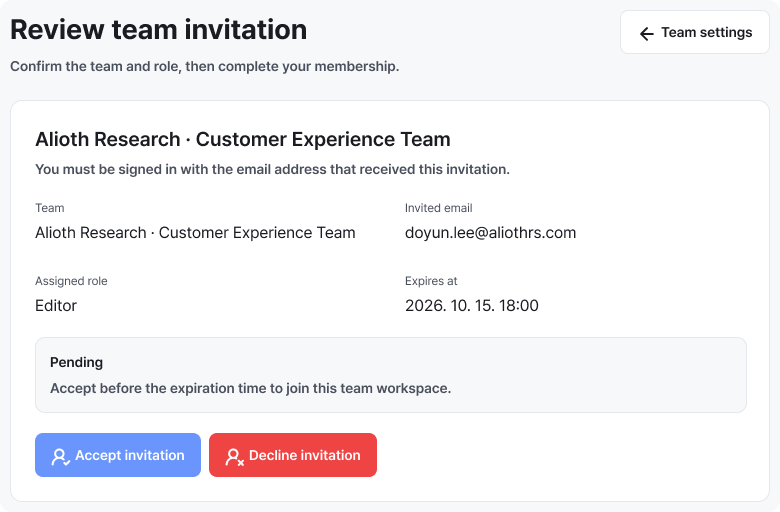
Review the team, email, role and expiry. Accept if this is the team you want to work with. Enlarge image ↗ -
Accept or decline
Accept to join. To stay out, choose Decline and confirm. If you're signed in with another email, choose the sign-in-with-another-account action.
-
Open the team workspace
Acceptance takes you to the team. If reopening an accepted invitation, use Open team workspace. Check the team name and role at the top before working.
What to do for each invitation status
Check that you're done
After accepting and opening the workspace, check the team name and your role. If you declined, check the Declined status.
If you need help
Wrong-account notice? Check the invited email and sign in with it. For canceled or expired invitations, ask for a new one. If features are missing after joining, check your role.
Was this guide helpful?
Tell us if something was unclear or missing.
Send feedback on this guide →