Troubleshooting
Missing menus or buttons
Check your workspace and role, then follow the guidance for your next step.
The names, email addresses, and team details shown are fictional examples for illustration.
Before you start
Check the menu and research name you're trying to use. For team work, also identify which team's data you need.
Step by step
-
Check your current workspace
Open the workspace selector at the top and choose the personal or team workspace containing your data. If you were in another space, reopen your original menu.
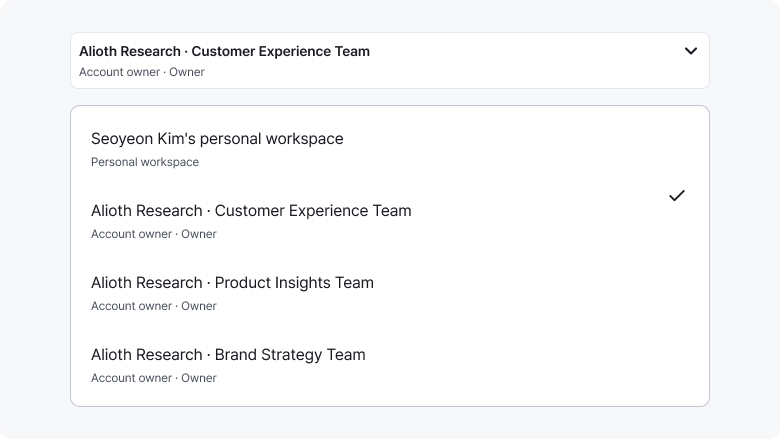
Check the current space and switch to the workspace containing your data. Enlarge image ↗ -
Review your role and any read-only notice
The selector shows your role in the current team. Read-only means you can view content but can't create or change it there. Ask your team administrator if you need editing or invitation permissions.

Check the role below the workspace name, such as Viewer. Available actions depend on your role. Enlarge image ↗ -
Use the notice beside the button to decide what to do
An export-permission button opens guidance. You can still view results; ask for a role change if you need files. For usage notices, check Plans & billing or Plan & usage.
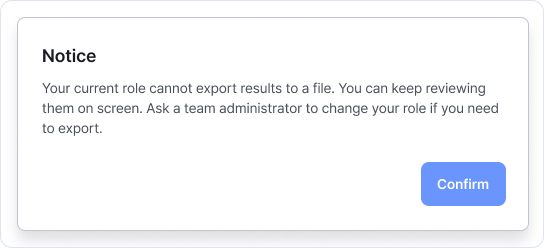
You can view results even if export is restricted. Request a role change when you need files. Enlarge image ↗
Check that you're done
After checking the workspace and role, continue the actions available to you. Ask the team administrator for any extra permission.
If you need help
If the space and role are correct but the action still fails, contact support with the menu and notice. Passwords and complete invitation links aren't needed.
Was this guide helpful?
Tell us if something was unclear or missing.
Send feedback on this guide →