Troubleshooting
When you can't find a screen
Reopen from the menu and check the workspace, or review your invitation's status.
The names, email addresses, and team details shown are fictional examples for illustration.
Before you start
Check whether you used an old URL or bookmark, or a team invitation link. Also check which account is signed in.
Step by step
-
Return to the dashboard and use the menu
If the page can't be found, return with Dashboard. Use Research for editing, Distribute Research for distribution, Participation Status for results, or Workspace for team management.
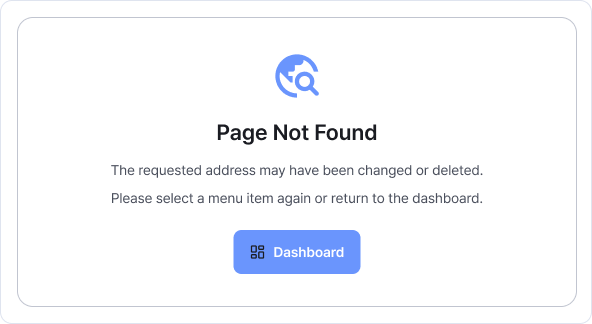
For an incorrect URL, return to Dashboard and reopen the screen from its menu. Enlarge image ↗ -
Check the account, workspace and search filters
If sign-in is required, use the account you were working with. Choose the workspace containing your data and look again. Check research search terms, status and creation dates. If team data remains unavailable, ask the administrator about access.
-
Follow the invitation's displayed status
If expired or unavailable, ask for a new invitation. If another account is required, sign in with the invited email. For an accepted invitation, choose the team in the top workspace selector.
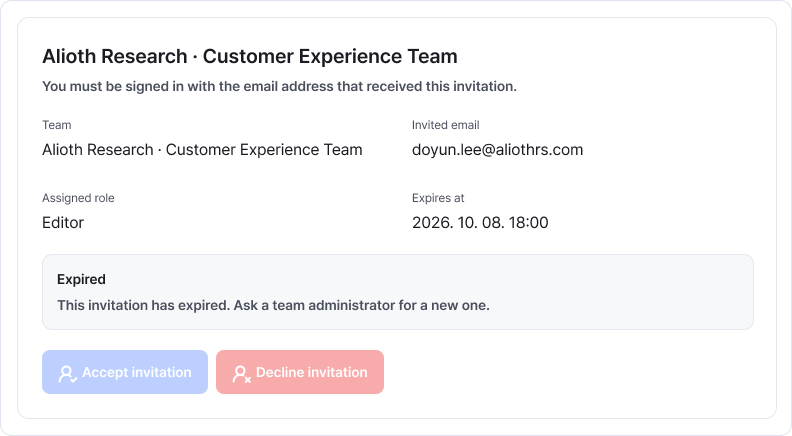
An expired invitation can't be accepted. Ask your team administrator for a new one. Enlarge image ↗
Check that you're done
It's resolved when you can reopen the screen or data from the menu. For an expired invitation, request a new one.
If you need help
If the menu leads to the same problem, contact support with the menu name, account/team and notice. You don't need to send passwords or the full invitation URL.
Was this guide helpful?
Tell us if something was unclear or missing.
Send feedback on this guide →