Troubleshooting
Messages and contacting support
Use the on-screen message to check what needs attention and ask for help if needed.
The names, email addresses, and team details shown are fictional examples for illustration.
Before you start
Read the dialog title and message first. Before retrying, check what you've already entered or completed.
Step by step
-
Use the notice title to find what to check
The notice title points you to the right place.
Permissions → your current team and role.
Input check → the field mentioned in the message.
Plan usage → your current plan and remaining allowance.
Latest status → reopen the screen and check the current state.
Connection → your internet connection.
Read the message, then select Confirm to close the dialog.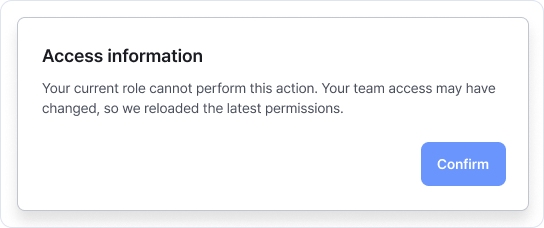
The title tells you where to check; the message explains the problem. Read the actual notice and confirm. Enlarge image ↗ -
Check the outcome before trying again
A task may have finished even if the connection dropped. Check saved research in the list or details, distributions in their list, and payments in history. Retry only what's unfinished after resolving the reported problem.
-
Contact support if it remains unresolved
Use Contact at the bottom of the page. Include the screen and button, time, expected and actual results, and displayed message. Hide response content, contacts and payment details in screenshots. Don't send passwords or complete verification or invitation links.
Check that you're done
Check the suggested items, then continue. If the problem remains, tell support which screen and action caused it and include the message.
If you need help
You don't need to hunt for an error code. The displayed title, message and action that caused it are enough to start an inquiry.
Was this guide helpful?
Tell us if something was unclear or missing.
Send feedback on this guide →