Troubleshooting
When an email doesn't arrive
Check the email type, address and sending status in order.
The names, email addresses, and team details shown are fictional examples for illustration.
Before you start
Check which email you're waiting for: verification, password reset, team invitation or a research invitation. Each has a different place to check.
Step by step
-
Check the address and inbox first
Check spelling and the email domain. Look in spam and promotions too. For a work address, ask your email administrator whether company filtering could be blocking it.
-
Check account and invitation emails in their screens
Resend verification from the verification screen. For password reset, check that you requested it for your registered email. Ask the inviting team administrator to check the address and invitation status. Request a new invitation if the old one expired.
-
For research email, check the recipient list
In Distribute Research, open the email distribution's recipient list. Success means sent, Failed means sending failed, and Pending means waiting. Read the reason on failed rows. If sent but not received, ask the recipient to check their folders again.
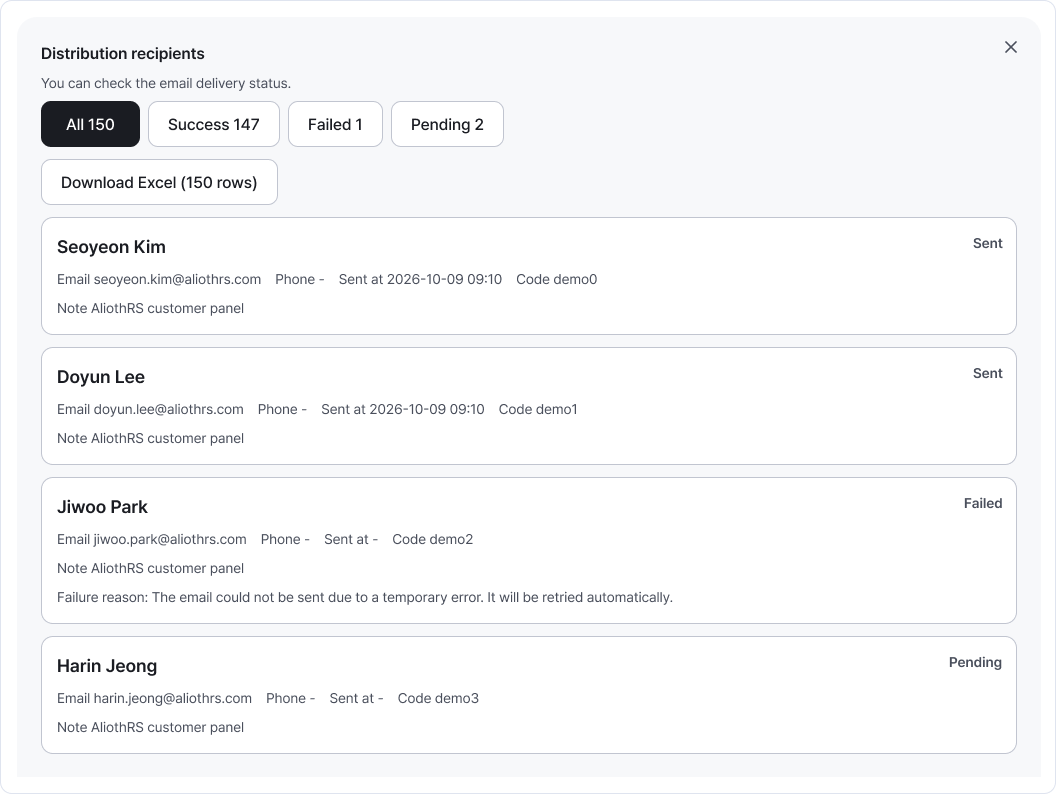
Filter recipients by status and check individual results and failure reasons. Enlarge image ↗
Check that you're done
Check the address, folders and sending or invitation status. Once it arrives, continue verification, accepting the invitation or answering the research.
If you need help
Still no email? Contact support with the email type, request time and displayed status or failure reason. Check existing recipients' status before repeating a send.
Was this guide helpful?
Tell us if something was unclear or missing.
Send feedback on this guide →