Studio basics
Profile and account settings
Review your account details and update your name or password.
The names, email addresses, and team details shown are fictional examples for illustration.
Before you start
Select your name and email at the bottom left to open your profile. On narrow screens, use the menu button (☰) to find the account area.
Step by step
-
Review your account information
In My profile, check your name, email, sign-up date and last sign-in time. The Plan card shows your current workspace's plan. Use the plans-and-billing button for more details.
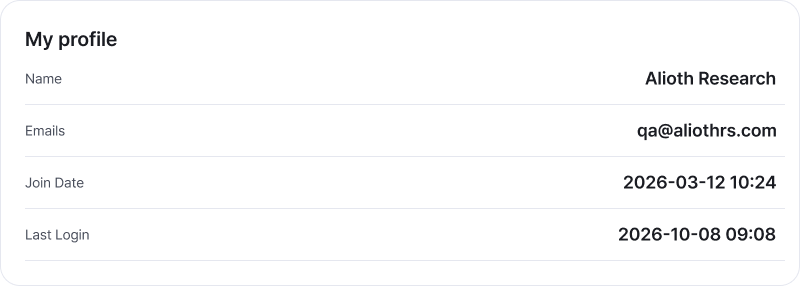
This is your profile information area. Open it by selecting your name and email at the bottom left. Enlarge image ↗ -
Change your display name
Select Edit profile. Enter a name of 2–20 characters and your current password, then Confirm. Check that your account name at the bottom left has updated.
-
Change your password
Choose Change password and enter your old password and the new password twice. Use 8–32 characters with uppercase and lowercase English letters, numbers and special characters, without spaces. Check any additional on-screen requirements, then confirm and look for the completion message.
Check that you're done
After editing your profile, check the new name. After changing your password, check the completion message. Use the new password the next time you sign in.
If you need help
Password rejected? Check your input language and letter case. If you've forgotten it, use password reset. If saving fails, follow the guidance below the fields.
Was this guide helpful?
Tell us if something was unclear or missing.
Send feedback on this guide →