Studio basics
Find your way around, language and theme
Find the right menu and choose a language and theme that suit you.
The names, email addresses, and team details shown are fictional examples for illustration.
Before you start
Start most Studio tasks from the left menu. On a narrow screen, use the menu button (☰) at the top to open the same options.
Step by step
-
Choose the menu for your task
Use Research to write and edit questions, Distribute Research to set participation methods and dates, and Participation Status to review results. Prepare email contacts in Address book under Distribute Research. Select your name and email at the bottom left to open your profile.
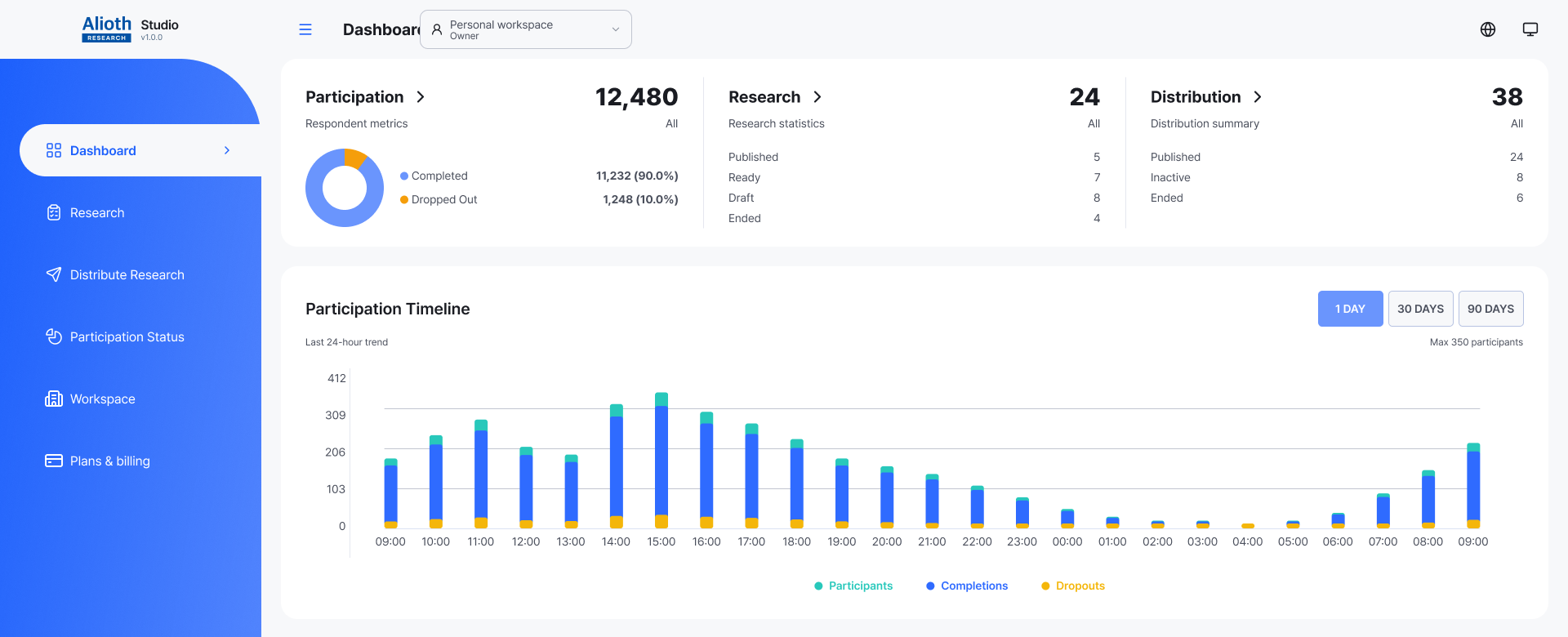
Start from the left menu. Language and theme controls are at the top right. Enlarge the image to locate them clearly. Enlarge image ↗ -
Choose your display language
Select the globe icon at the top right, then choose 한국어, English or 日本語. Menus and guidance change to your chosen language. On narrow screens, open the menu panel to find the selector.
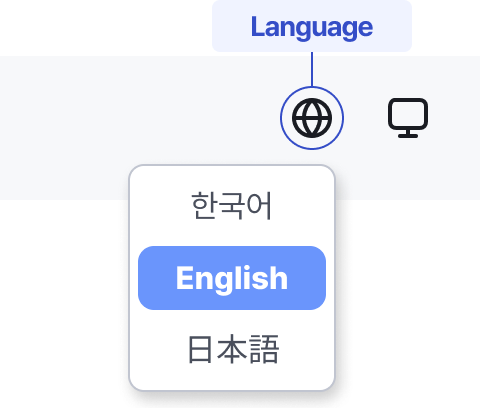
Use the globe button to choose 한국어, English or 日本語. Enlarge image ↗ -
Choose a comfortable theme
Select the theme button next to language. Light is bright, Dark is dark, and Auto follows your device. Its icon may be a sun, moon or monitor depending on the theme. On narrow screens, use the menu panel.
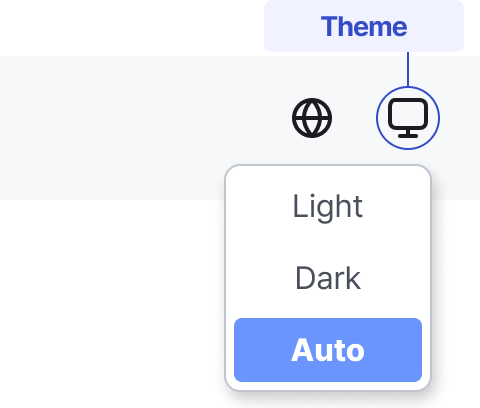
Choose Light, Dark or Auto from the theme button. Enlarge image ↗
Check that you're done
Check that the selected language and theme are applied. You're ready to choose a task from the left menu.
If you need help
Menu missing on your phone? Scroll to the top and select the menu button. If options still don't appear or links won't open, see the related guides below.
Was this guide helpful?
Tell us if something was unclear or missing.
Send feedback on this guide →