Studio basics
Your dashboard
Check participation and distribution progress and pick up your recent research.
The names, email addresses, and team details shown are fictional examples for illustration.
Before you start
After signing in, the dashboard gives you an overview. Return to it from any screen by selecting Dashboard on the left.
Step by step
-
See three summaries at a glance
The three areas at the top show response collection and research and distribution progress. Match the numbers in the image with the explanations below.
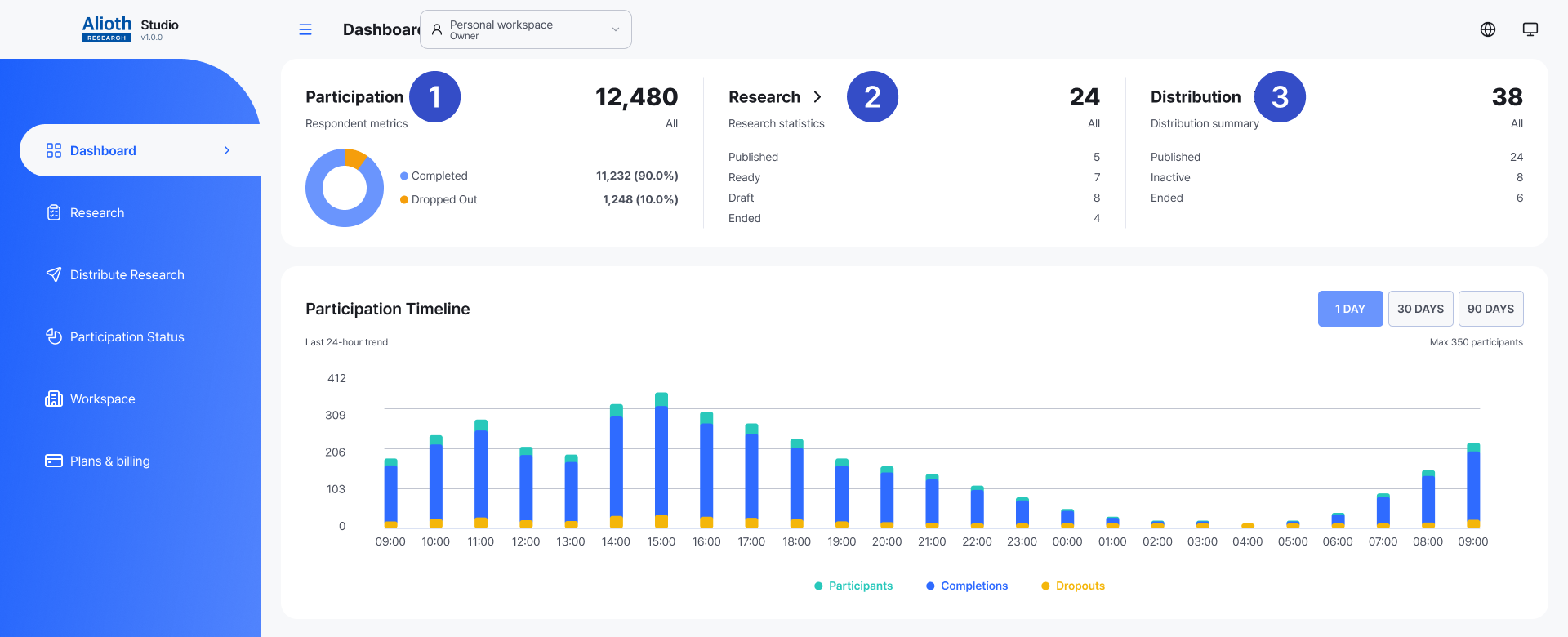
① Participation · ② Research · ③ Distribution. All figures are examples. Enlarge image ↗ ① Participation status
See how many responses you've collected.
- Total
- All participation records for your research.
- Completed responses
- Responses finished through the final step.
- Dropped-off responses
- Responses started but not yet finished. This can include people still answering.
- Rate (%)
- The share of all participation that is completed or unfinished.
② Research status
Check the progress of your research projects.
- Total
- The total number of research projects.
- Distributing
- Research at the stage of collecting responses through distribution.
- Before distribution
- Research with editing and preparation complete, waiting for distribution.
- Draft
- Research whose questions and content are still being written.
- Ended
- Research that has finished collecting responses.
③ Distribution status
Check the status of your participation channels.
- Total
- All distributions created for your research.
- Distributing
- Distributions started to accept participation.
- Inactive
- Distributions not yet started or being prepared before restarting.
- Ended
- Distributions that have closed participation.
-
Compare participation over time
Choose 1, 30 or 90 days at the top right of the participation timeline. Use the legend to identify participation, completed and dropped-off series, then compare periods.

Use the top-right period buttons to compare participation over 1, 30 or 90 days. Enlarge image ↗ -
Continue from recent research
In Recent research, choose Distributing, Before distribution, Draft or Ended. Before distribution matches Ready in the research list. Card actions open details, editing, distribution and statistics. Select the total count to see all research in that status.
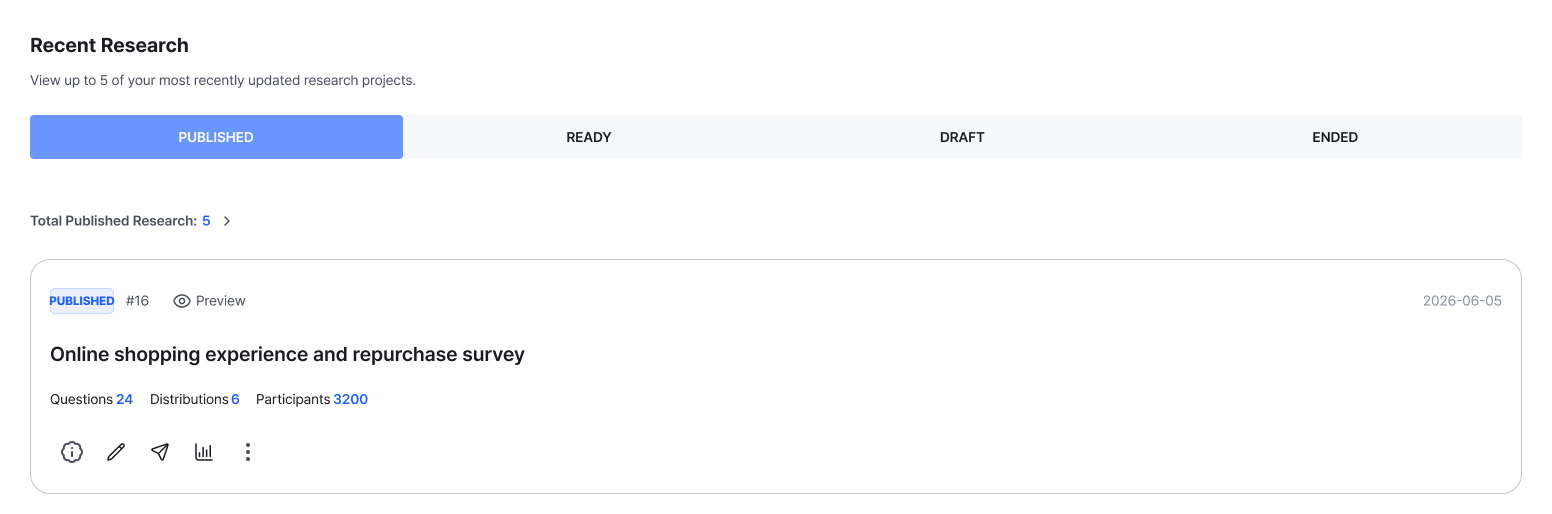
Choose research from a status tab and continue with the card actions. Select the total count above for the full list. Enlarge image ↗
Check that you're done
After checking the summaries and trends, open the research you need. For individual responses, choose Participation Status on the left.
If you need help
Recent research missing? Try another status tab. If the chart looks unexpected, check the period. If data won't load, wait briefly and refresh.
Was this guide helpful?
Tell us if something was unclear or missing.
Send feedback on this guide →