Participation & data
Question statistics and cross-analysis
Find popular answers and compare groups such as age or gender.
The names, email addresses, and team details shown are fictional examples for illustration.
Before you start
Select research and distribution, then open Participation statistics. Comparisons by gender or age require responses that collected that information.
Step by step
-
Read the response distribution on each question card
Check the question title and type first. Choice questions show each option's percentage and count, plus total responses. A0 and A1 indicate option order; read them with the adjacent option text.
The most frequent option is the one chosen most; the least frequent was chosen least. Here A1, Once or twice a week, is highest with 123 responses.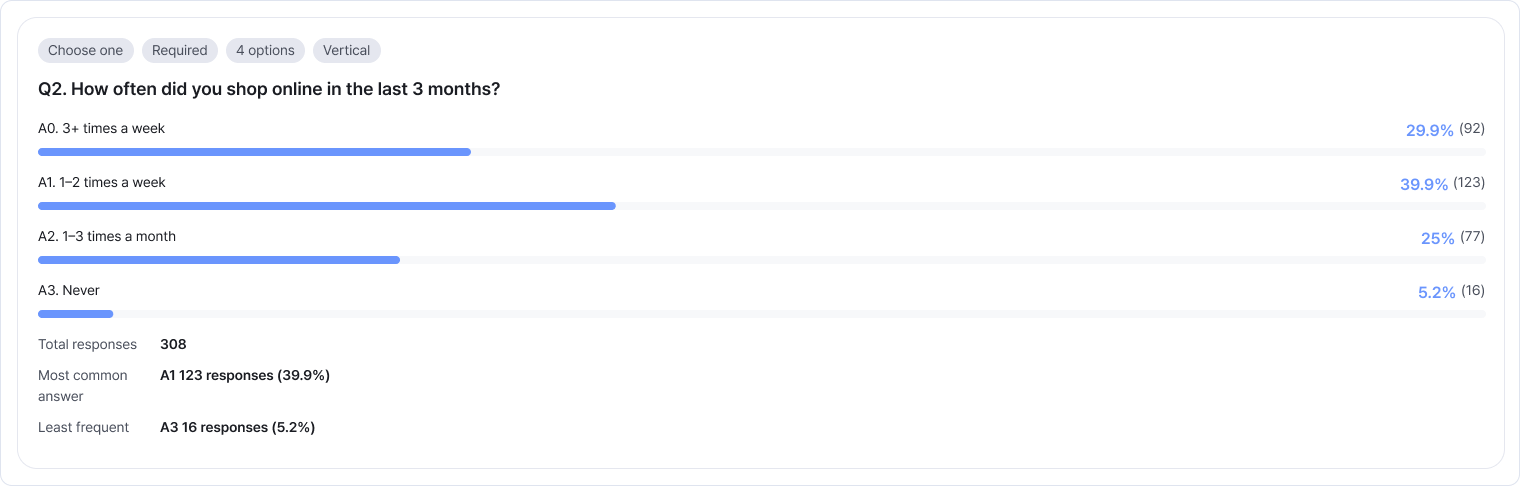
A longer bar means a larger share. Read results against the total responses shown for that question. Enlarge image ↗ -
Use the measures for each question type
For ratings and scales, read the distribution with the average and median. The average gives an overall score level; the median is the middle value when scores are ordered.
Long-text statistics show answer length. Read the actual text in Participation details.
For matrix questions, compare option percentages in the heatmap, then review each item's card below.
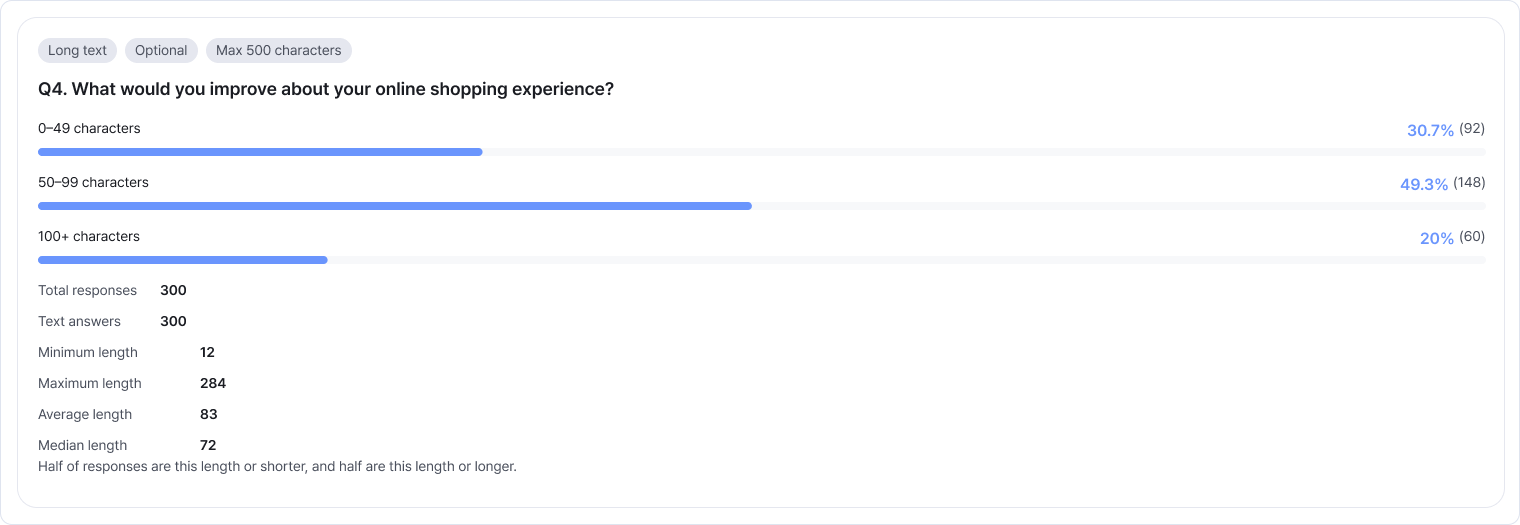
These statistics measure answer length. Open Participation details to read what people wrote. Enlarge image ↗ 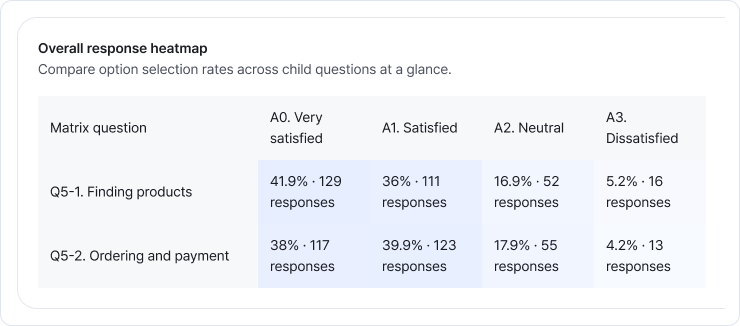
The heatmap compares each item's option percentages. In this example, A0, Very satisfied, is highest for product browsing at 41.9%. Enlarge image ↗ -
Focus on the participants you need
Select values in the participant-information filter. Changing a selection refreshes the question statistics.
For example, selecting Female and ages 20s and 30s shows women in either age group. You can select several values within one field.
Select a value again to clear it. Use the reset arrow beside the filter heading to clear all selections.
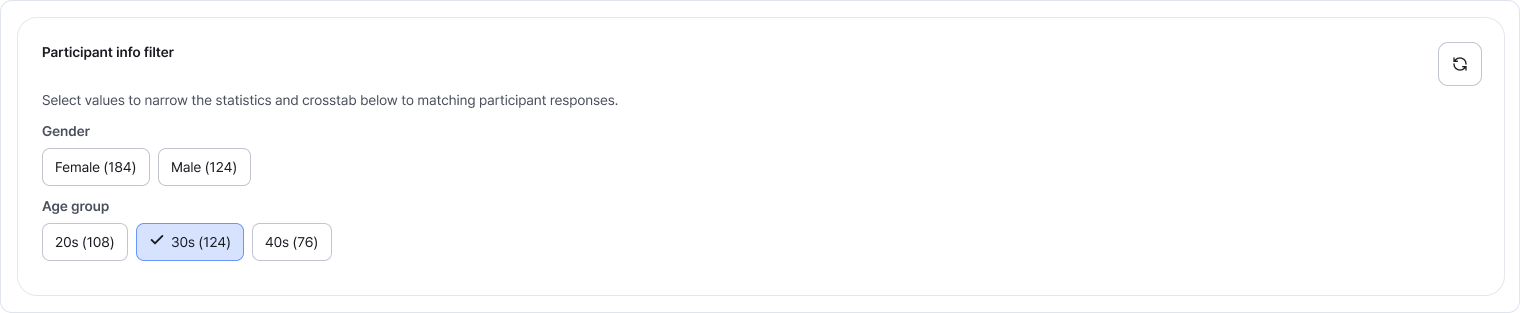
This example selects only the 30s. Filters also apply to response details and cross-analysis, but not the timeline. Enlarge image ↗ -
Compare answers across participant groups
In participant-information cross-analysis, choose the comparison field first and the question second. Try Age group and Online shopping frequency.
The table icon runs cross-analysis. Run it again after changing the field or question. You can compare single-choice, multiple-choice, star-rating and scale questions.
The table icon runs the analysis; the document icon downloads its Excel file. Download requires a result and export permission. Enlarge image ↗ -
Read counts and warnings together
Participant value identifies a group such as the 30s; Answer identifies the option. Response count counts answers, while respondent count counts people. These can differ for multiple-choice questions.
In the example, I don't use it has four responses for the 30s. An n<5 warning means few people responded; don't treat that result alone as a general trend.
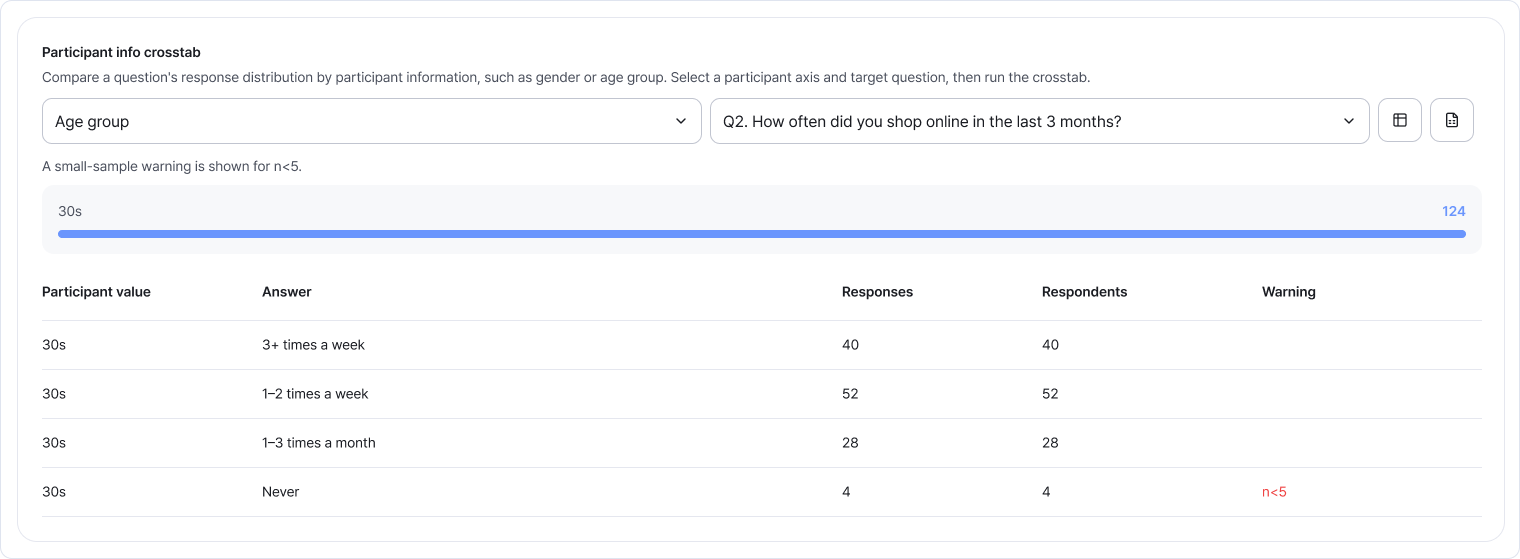
Check research, distribution and participant filters before comparing groups. Enlarge image ↗
Check that you're done
You're done when you've found popular answers and compared groups alongside their counts. Read written opinions in Participation details next.
If you need help
No participant filter? Check that you collected participant fields with selectable values.
Can't select a question? Check for a single-choice, multiple-choice, star-rating or scale question.
No matching responses? Clear the filters or switch to all distributions.
Want to read long answers? Open Participation details.
Was this guide helpful?
Tell us if something was unclear or missing.
Send feedback on this guide →