Participation & data
Participation across distributions
Compare channels and follow participation, completion and drop-off over time.
The names, email addresses, and team details shown are fictional examples for illustration.
Before you start
Open Participation Status from the left menu. Check the workspace and research title at the top so you don't confuse different projects.
Step by step
-
Select research and a distribution scope
Use the arrow beside the research title to choose research. Then expand the selector beside the all-distributions view to choose a distribution.
All distributions: see every distribution for the selected research together.
One distribution: see results from a single channel, such as Social media recruitment.
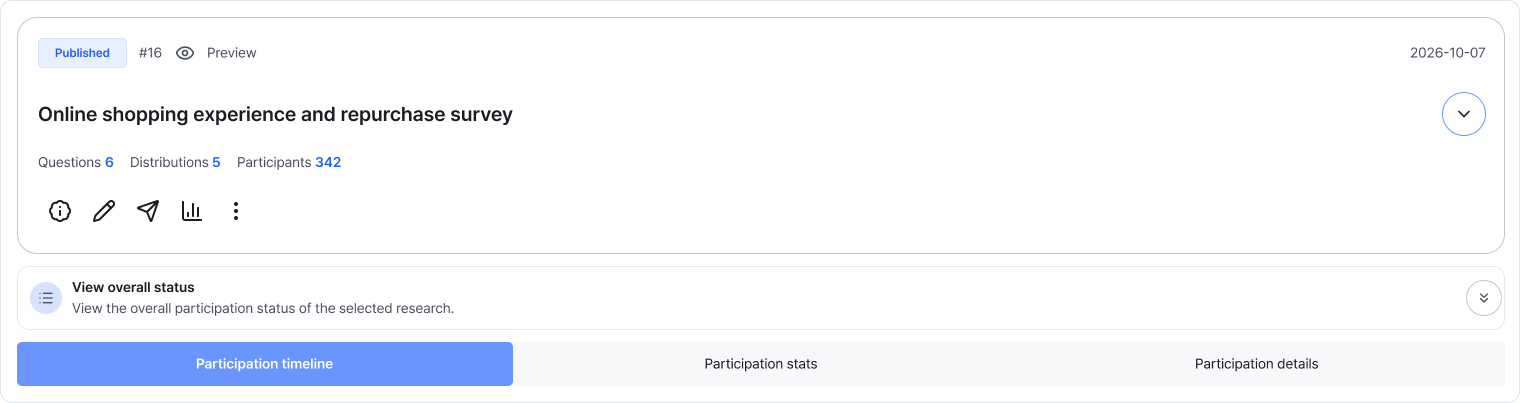
Choose research first, then all distributions or a specific one. Your scope applies to all three tabs. Enlarge image ↗ -
Understand participation, completion and drop-off
The overall summary on the left of Participation timeline shows cumulative totals for your research and distribution scope.
Total: all responses that started participation.
Completed: responses answered through to submission.
Dropped off: responses started but not submitted.
The percentages beside completed and dropped-off counts are their shares of total participation.
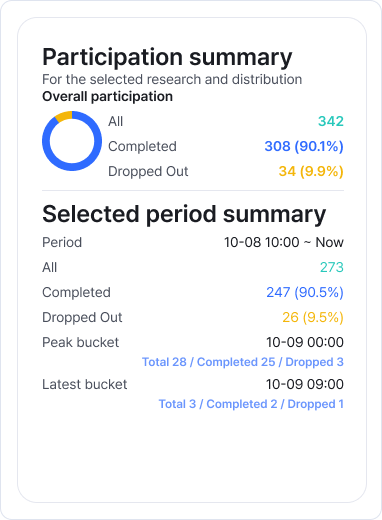
Overall participation is cumulative. The period summary below shows counts for the period selected on the right. Enlarge image ↗ -
Explore participation over different periods
Choose 1, 30 or 90 days on the right timeline. These show hourly, daily and weekly trends respectively.
Use the legend colors for participation, completed and dropped-off counts. Peak is the busiest interval; Recent is the latest summarized interval. Refresh beside the period buttons for the latest results.
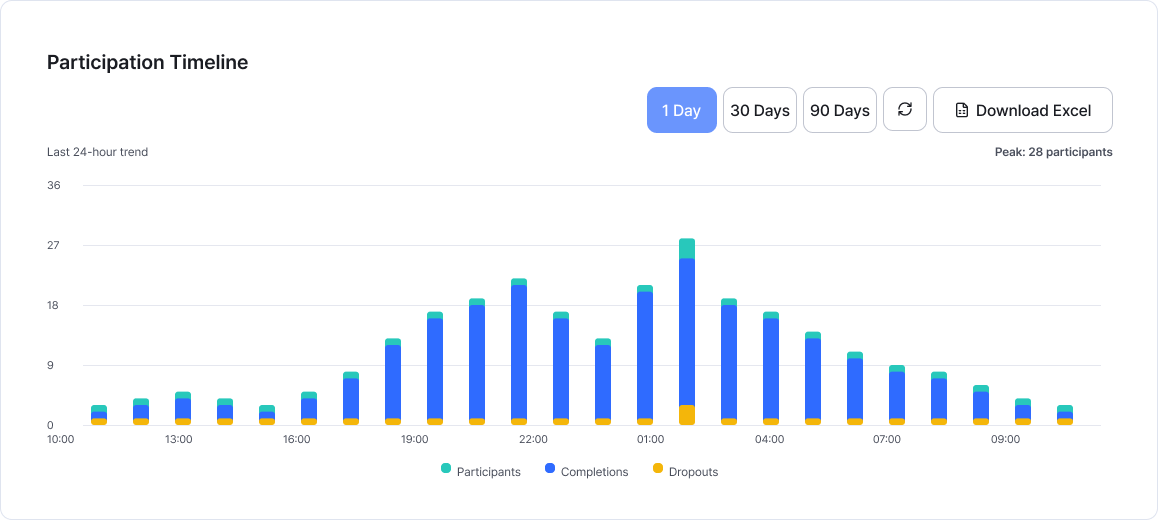
The period affects the chart and period summary. It doesn't change cumulative totals or the scope of statistics and response details. Enlarge image ↗ -
Compare distributions and review answers
Switch between distributions such as Social media recruitment and Alioth customer panel · October to compare channels.
Choose Participation statistics for question summaries, or Participation details to read the actual answers.
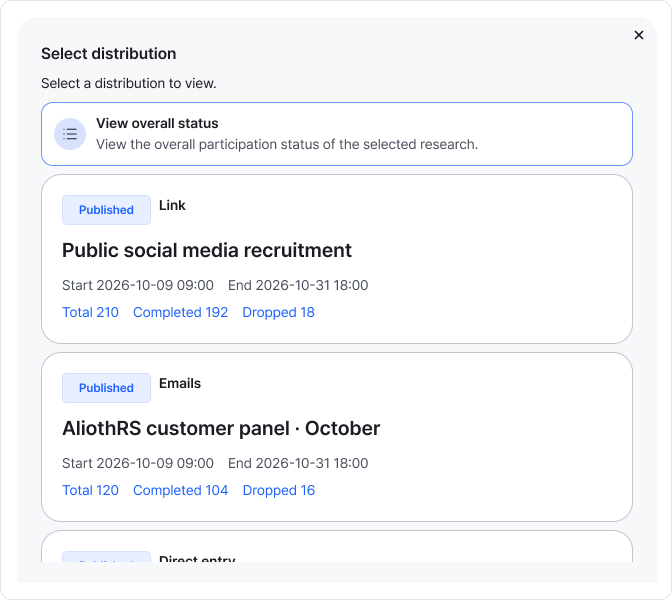
Switch back to all distributions to see the combined results again. Enlarge image ↗
Check that you're done
You're ready when you've selected the right research and distribution and can distinguish cumulative totals from trends. Next, use statistics to see popular answers.
If you need help
Unexpected numbers? First check research, distribution and period. Self-entered responses are included too.
No results? Choose all distributions and check whether any responses have arrived.
Recent responses missing? Refresh the current tab.
Was this guide helpful?
Tell us if something was unclear or missing.
Send feedback on this guide →