Participation & data
Read and export responses
Read individual answers and save the results you need as Excel files.
The names, email addresses, and team details shown are fictional examples for illustration.
Before you start
Select your research and distribution in Participation Status. Filters set in Participation statistics also apply to Participation details. Clear them first to see everyone's answers.
Step by step
-
Read answers by question in Participation details
The Participation details tab lists answers for each question. Check the distribution name and participation time alongside each answer. Scroll down for more responses.
Link responses: use the participant number and code to identify a response.
Email responses: check the invited email address and code.
Direct entry responses: check the participant name or reference you entered.
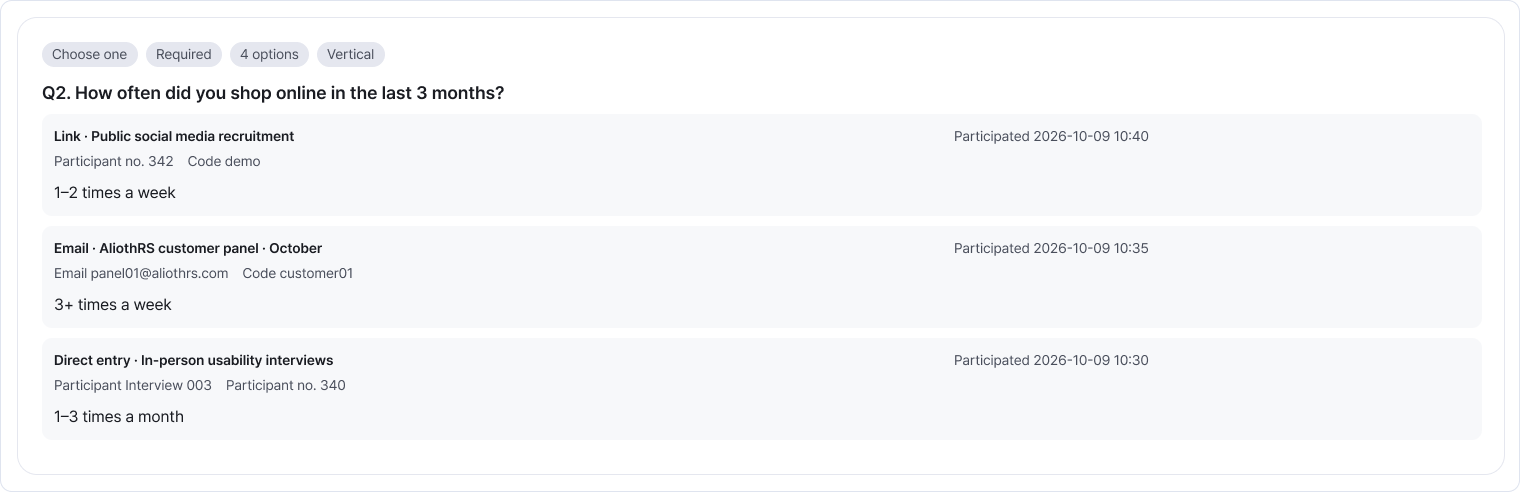
Answers are grouped by question. Use the participant number or email to match answers from the same person. Enlarge image ↗ -
Choose the download that matches your needs
Participation trends: use Excel download in Participation timeline. It saves trends for your selected research, distribution and period.
Question statistics: use Excel download beside the Participation statistics heading. It saves statistics for your research, distribution and participant filters.
Response details: use Excel download beside the Participation details heading. It saves answers matching the current research, distribution and participant filters.
Cross-analysis: after running it, use the document icon to the right of the selectors. It saves results for the comparison field and target question you ran.
Find Excel download beside each tab heading. For cross-analysis, use the document icon inside its card. Enlarge image ↗ -
Locate and open the saved file
Choose a save location or find the file in your browser's downloads. Open it and check the research, distribution and results.
The response-details file includes all results matching your current filters, not just answers you've scrolled through on screen.
Check that you're done
You're done when the file contains the intended research and distribution results. Share files containing participant information only with people who need them.
If you need help
See an export-permission notice? Select the button to read it and ask your team owner or administrator. You can still view results.
Can't find the file? Check your browser's downloads and save folder.
Wrong data range? Recheck the research, distribution and filters.
Need to edit a self-entered response? Open its direct entry distribution in Distribute Research.
Was this guide helpful?
Tell us if something was unclear or missing.
Send feedback on this guide →