Create research
Write your questions
Add clear questions and choose answer types and a logical order.
The names, email addresses, and team details shown are fictional examples for illustration.
Only owners, administrators and editors can create or edit research.
Before you start
Open Edit questions for saved research. Start with an easy question that anyone can answer.
Step by step
-
Choose an answer type in Add question
In Add question, choose the type that fits what you want to ask.
Single choice / multiple choice: choosing from options.
Short text / long text: writing opinions in their own words.
Star rating / score rating: rating satisfaction or likelihood to recommend.
Matrix: comparing several items using the same options.
The example begins with a single-choice question about shopping frequency.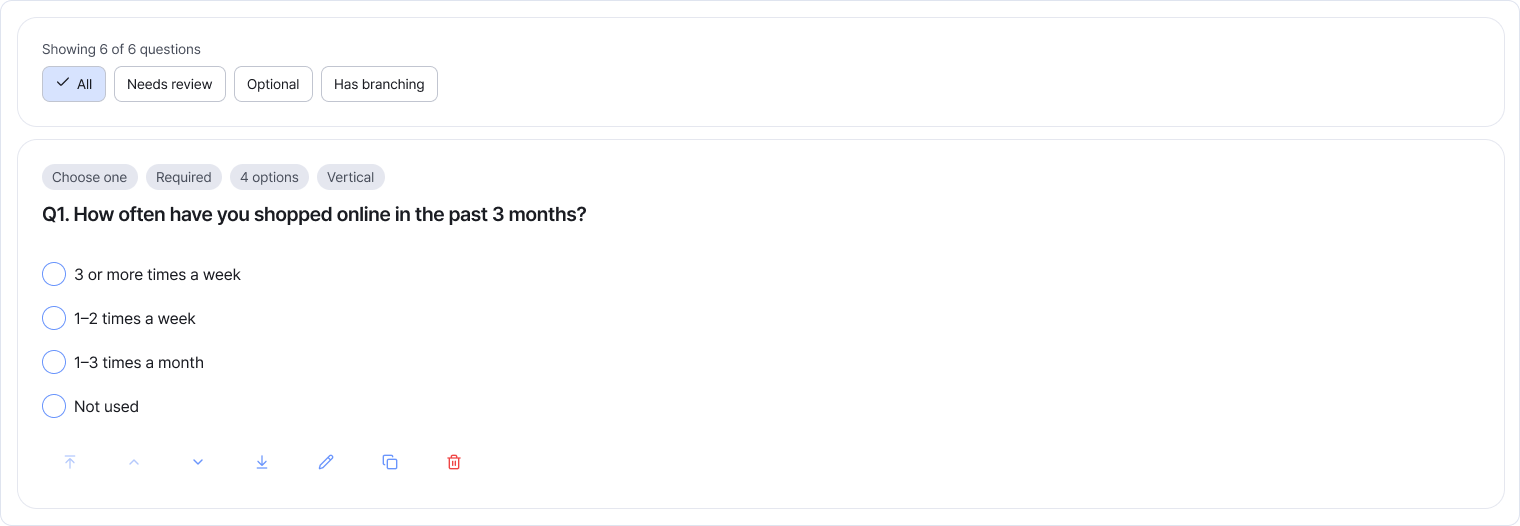
Each card shows both answer type and whether the question is required. Enlarge image ↗ -
Write and save your question and options
Make each title easy to understand. Enable Required only when an answer is essential. Scroll down to add options that don't overlap, then save.
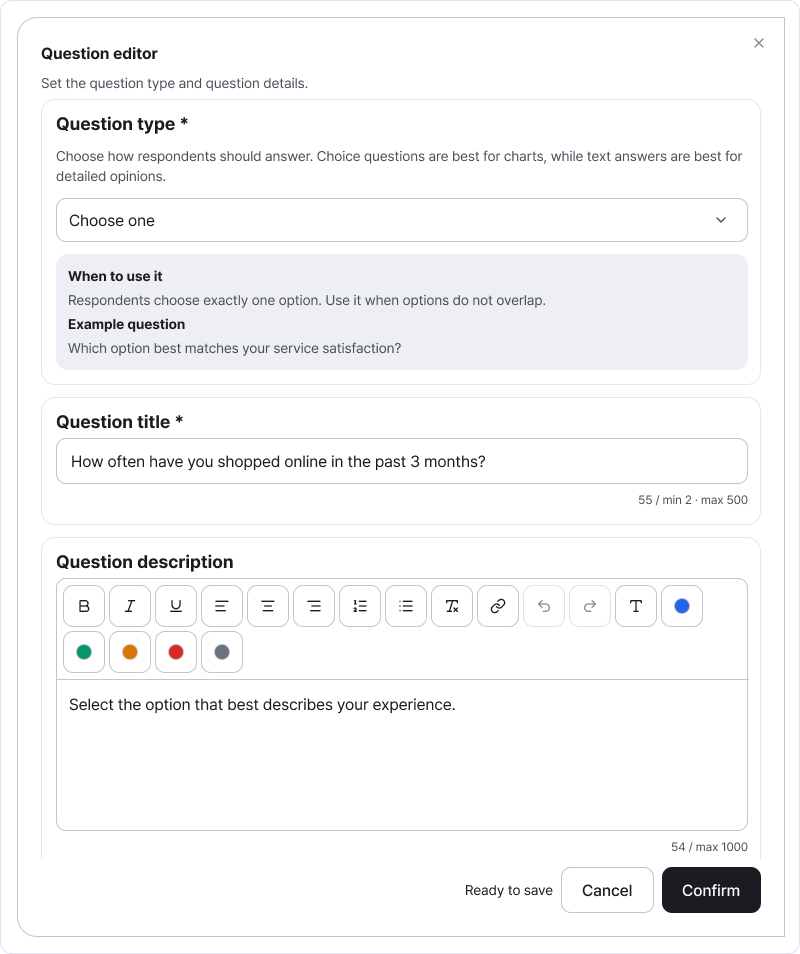
Set the type, title and description at the top. Scroll down for answer settings and options. Enlarge image ↗ 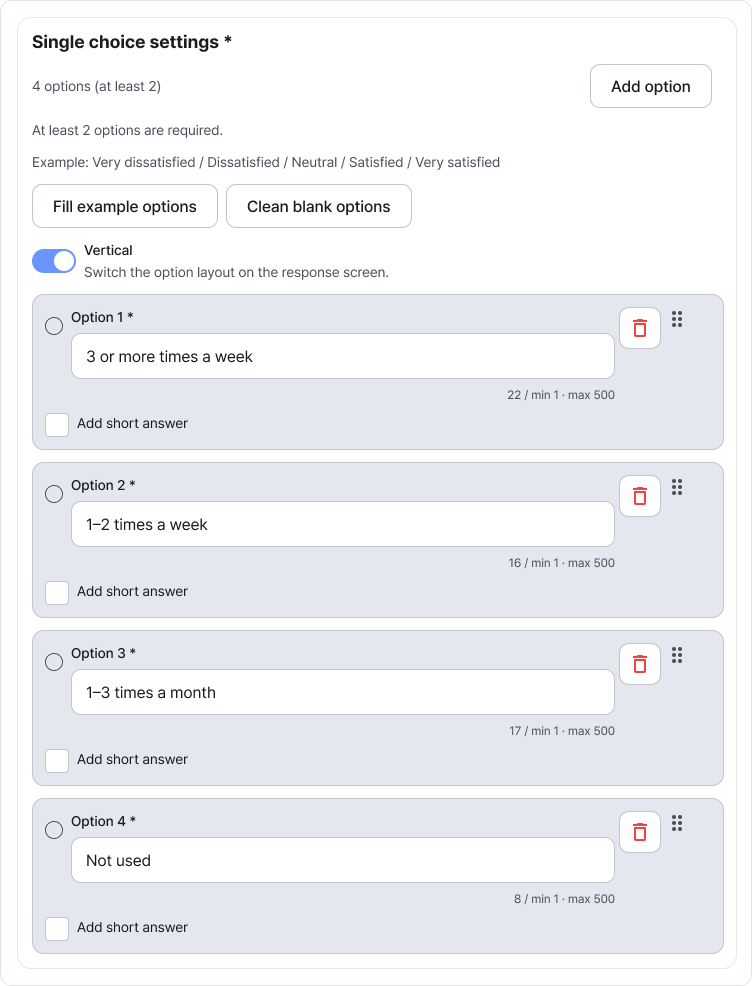
The lower area lets you review option text and order and add options. Enlarge image ↗ -
Refine the order with card actions
Move questions up or down, or copy similar ones and adapt them. Check the content before deleting. Filters let you focus on optional questions or those with branches.
-
Collect only the participant details you need
Add participant information to compare results by gender or age. Enable only needed fields and set which are required. You can add one participant-information question; edit it to collect more fields. Test all questions in Preview.
Check that you're done
Continue once at least one question is saved and the order, options and required settings look right.
If you need help
If a question appears under Possible errors, check its title, options and branches. If deleting an option used by a branch shows a warning, cancel deletion or update the connected branch too.
Was this guide helpful?
Tell us if something was unclear or missing.
Send feedback on this guide →