Create research
Preview and finish editing
Try the participant experience yourself and get ready to distribute.
The names, email addresses, and team details shown are fictional examples for illustration.
Only owners, administrators and editors can create or edit research.
Before you start
Save basic information and questions first. If using branches, prepare to test answers that match and don't match the conditions.
Step by step
-
Open the participant view in Preview
Select Preview on the research card. A new tab shows the participant experience. Check the title, introduction and branding.
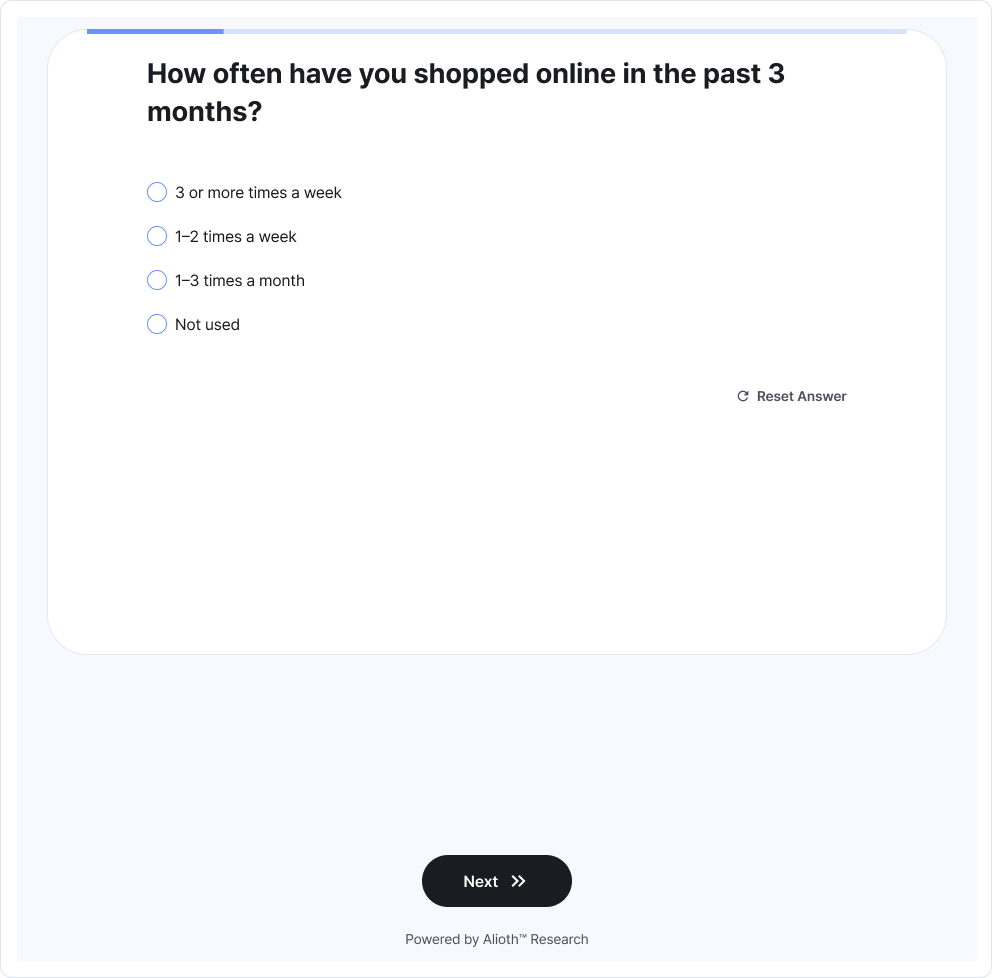
Try answering and moving to the next question as a participant would. Enlarge image ↗ -
Answer all the way to the completion screen
Check options and required-answer messages as you go. If there are branches, change your answers to test expected questions and endings. Preview responses aren't saved as actual results.
-
Return to Studio and prepare distribution
When no changes are needed, select Prepare distribution in question editing or logic settings. If items need attention, follow the indicated screen, fix them and try again.
-
Confirm that editing is complete
Confirm in the preparation dialog to mark the research Ready and open distribution. Choose Cancel for more editing. Then use Add distribution to set up participation.
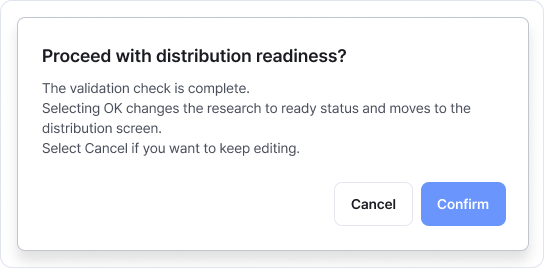
Confirm finishes editing and opens distribution. Cancel returns you to editing. Enlarge image ↗
Check that you're done
Creation is complete when research shows Ready and the distribution screen opens. Add a distribution method to start collecting responses.
If you need help
Preparation blocked? Read the items to fix on screen. Check saved questions, required options and destinations, then retry.
Was this guide helpful?
Tell us if something was unclear or missing.
Send feedback on this guide →