Create research
Find research and understand its status
Find a project and choose the next action for its current stage.
The names, email addresses, and team details shown are fictional examples for illustration.
Only owners, administrators and editors can edit or delete research.
Before you start
Choose Research on the left. To start a new project, select Create or Start from template.
Step by step
-
Find research by title
Search by title and filter by Draft, Ready, Distributing or Ended. Detailed search next to the search box lets you set creation dates and sorting.
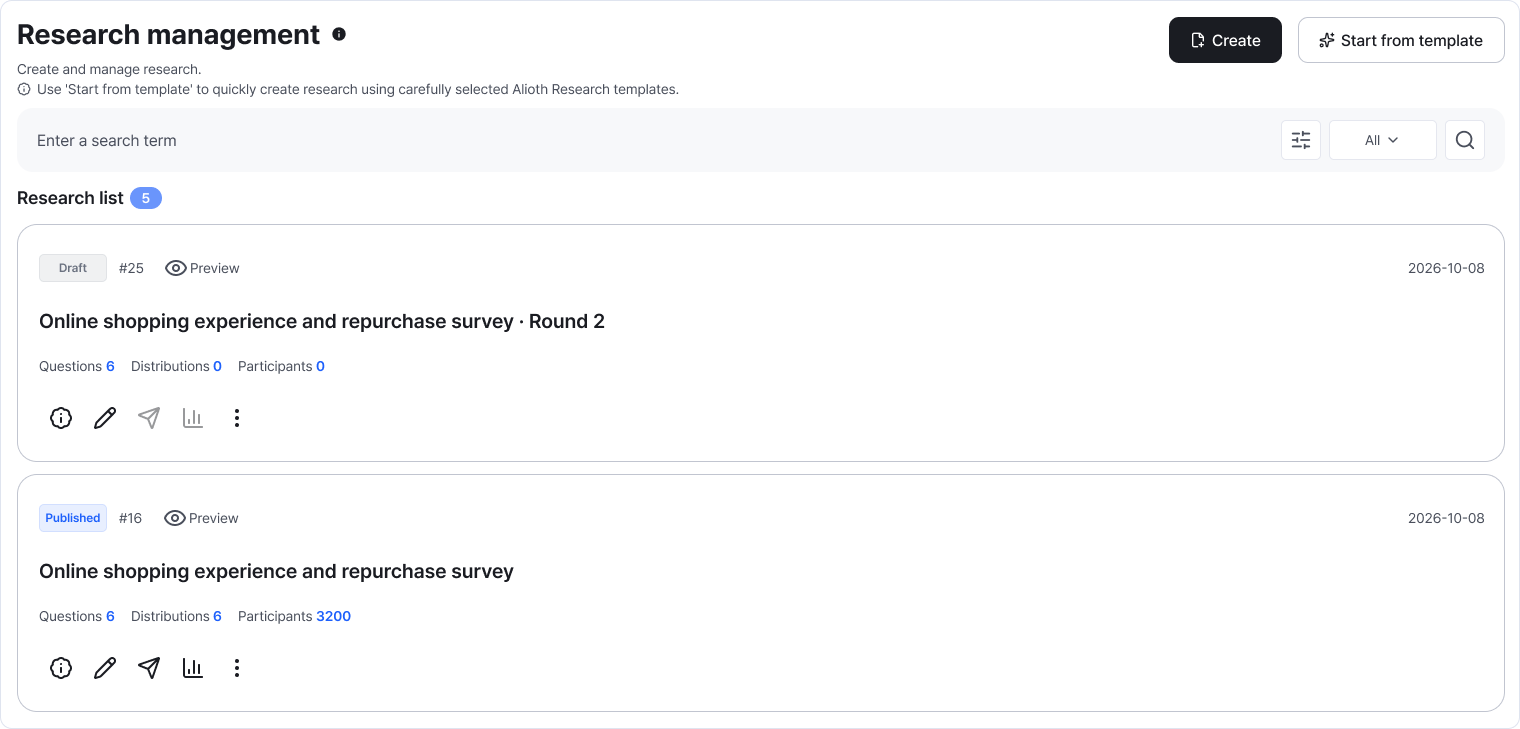
Search and status filters are above the list. Enlarge image ↗ -
Use the status to choose your next step
Draft means you're writing the questions. Ready means preparation is complete, Distributing means you're collecting responses, and Ended means collection is finished.
-
Open the screen you need from the card
Hover over the card icons to see their names. Details shows the structure; Edit changes content; Distribution prepares participation; Statistics reviews responses. Question, distribution and participation counts show their respective totals.
-
Copy similar research to save time
Choose Copy in the more menu (⋮), then adapt the new project's title and questions. Before deleting, save needed data and check the target. To stop recruitment only, use End on the distribution screen.
Check that you're done
You're on track when you've found the right title and status and opened the task you need.
If you need help
List empty? Clear the search, choose All statuses and check the creation-date range in detailed search. If Edit is unavailable, check the research status and your team role.
Was this guide helpful?
Tell us if something was unclear or missing.
Send feedback on this guide →