Create research
Title, introduction and branding
Shape the first and last screens your participants will see.
The names, email addresses, and team details shown are fictional examples for illustration.
Only owners, administrators and editors can create or edit research.
Before you start
Select Edit on the research card. Check the title and status before making changes.
Step by step
-
Write a clear title and introduction
Make the title describe the topic at a glance. Keep the introduction brief, including the purpose and expected time. The editor lets you emphasize text and add links.
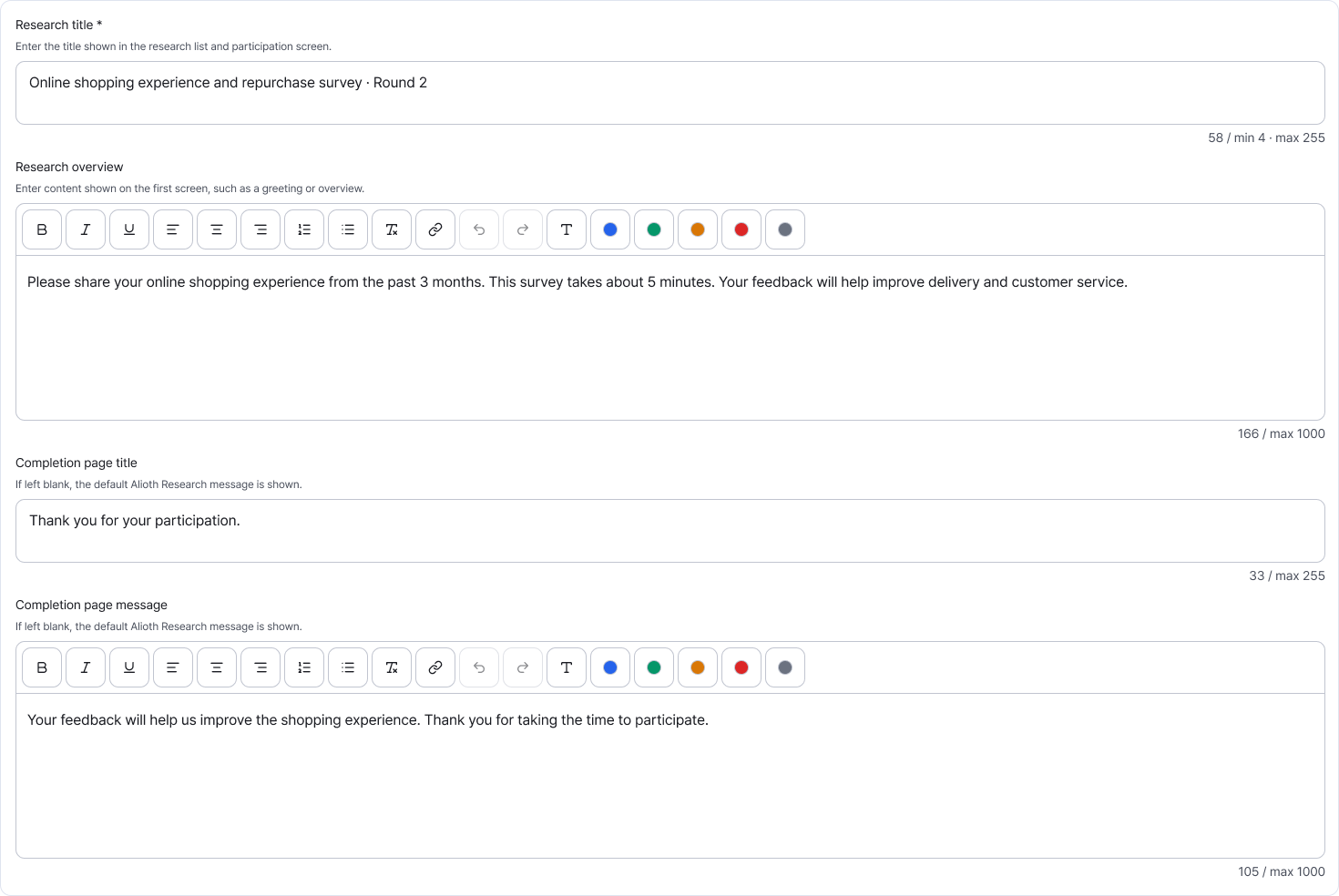
The introduction shapes participants' first impression. Enlarge image ↗ -
Thank participants when they finish
Write a completion-page title and thank-you message. For example: Thank you for sharing your views. Your feedback will help improve delivery and customer service. Leave these blank to use the default text.
-
Add your branding if needed
Enable your own branding and enter a brand name. You can set a logo and colors too. To direct people to another page after completion, enter both button text and an HTTPS URL. Available options depend on your plan.
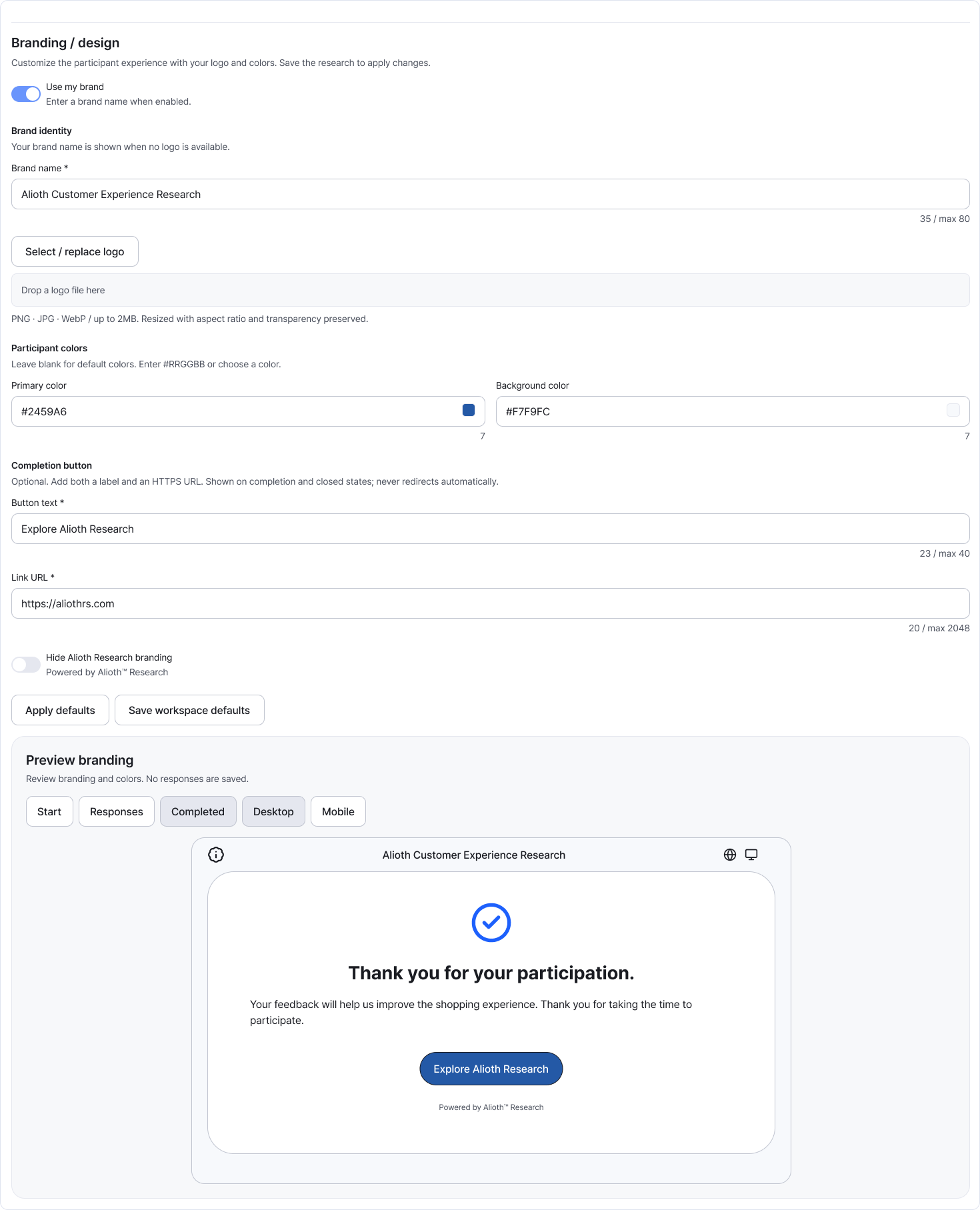
Set brand details, colors and the completion button in one area. Enlarge image ↗ -
Preview and save your changes
Use the branding preview to check the participant screen, then Save. To reuse a logo and colors, save them as workspace defaults. You can load those defaults for another research project.
Check that you're done
Save the title, introduction and completion text, then check them in Preview.
If you need help
Logo upload failed? Use PNG, JPG or WebP, up to 2 MB. A brand name is required when own branding is enabled. For a completion button, enter both text and an HTTPS URL.
Was this guide helpful?
Tell us if something was unclear or missing.
Send feedback on this guide →