Getting started
From sign-up to your first research project
Set up your account, launch your first research project and start reviewing responses.
The names, email addresses, and team details shown are fictional examples for illustration.
Before you start
Make a short note of what you want to learn, who you want to ask and your questions. A few simple questions are a great place to start.
Step by step
-
Create an account and sign in to Studio
Sign up, open the link in your verification email, then sign in. Once the dashboard opens, you're ready to create your first research project.
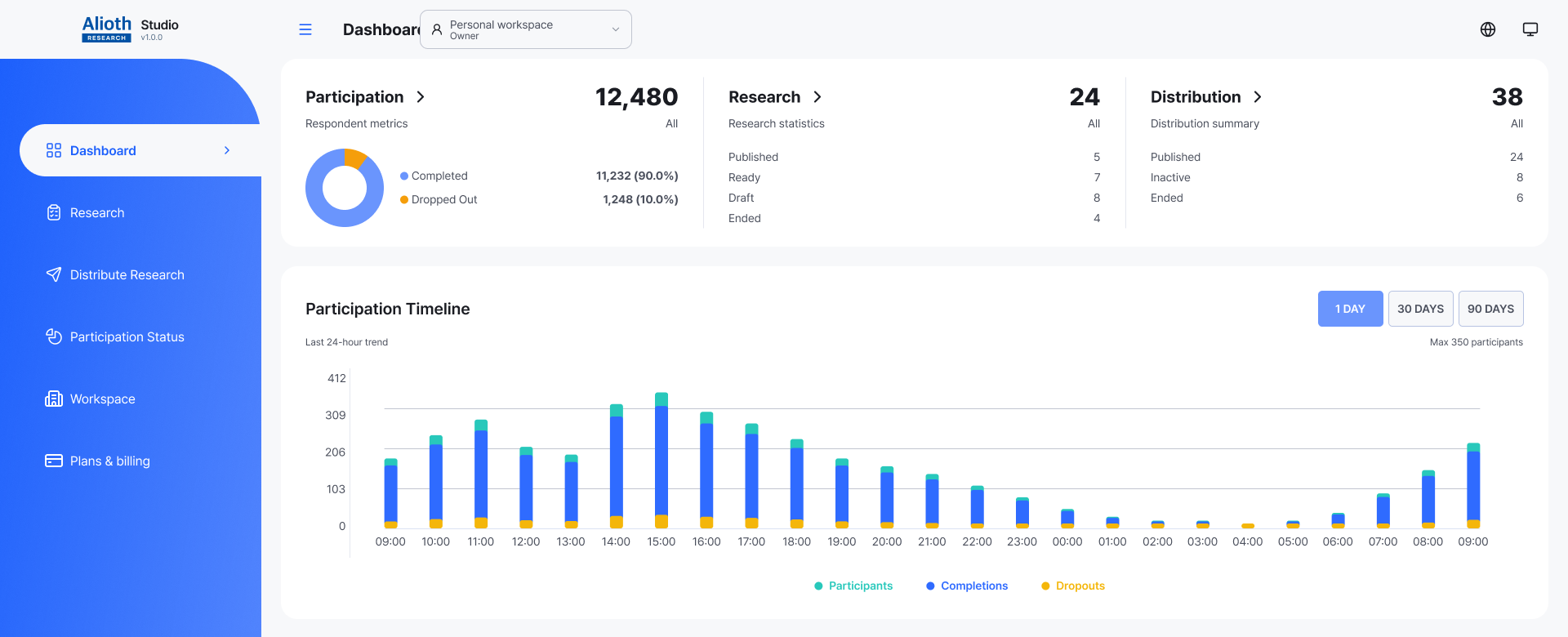
This example shows a dashboard with ongoing research. For your first project, start with Research in the left menu. Enlarge image ↗ -
Create your first research project and questions
In Research on the left, select Create. Or choose Start from template to use ready-made questions. Save the title and introduction, then open Edit questions to add what you'd like to ask.
-
Preview the participant experience
Preview lets you try answering the questions. When the questions and completion screen look right, select Prepare distribution. If any items need attention, follow the guidance to fix them and try again.
-
Distribute your research and check responses
Distribute Research offers link, email and direct entry options. Choose one and start distribution. Sharing a link is an easy first step. When responses arrive, open Participation Status to see your results.
Check that you're done
Once your first response appears in participation status, your research is underway. As more responses arrive, explore the question statistics too.
If you need help
If you get stuck while creating or distributing research, read the on-screen guidance. The related guides below walk through each task in detail.
Was this guide helpful?
Tell us if something was unclear or missing.
Send feedback on this guide →