Distribute research
Enter responses yourself
Record interview or paper-survey answers directly in Studio.
The names, email addresses, and team details shown are fictional examples for illustration.
Only owners, administrators and editors can enter, edit or delete responses.
Before you start
Use direct entry for interview or paper-survey responses. Select research in Distribute Research, then Add distribution → Direct entry. Enter real collected responses here; use research Preview for practice.
Step by step
-
Set up a direct entry distribution
Use a title such as In-person usability interviews. Set a participant limit if needed, enable the direct entry form and select Confirm.
If saved as inactive, choose Start distribution in the card's more menu (⋮).
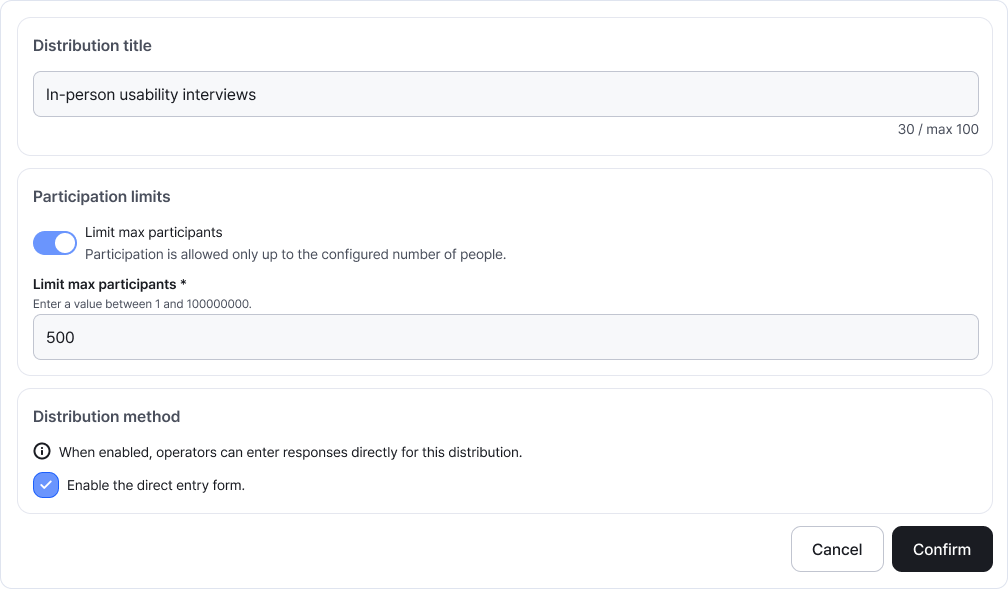
Direct entry needs a participant limit and activation settings as appropriate. It doesn't require a shared link or email setup. Enlarge image ↗ -
Start a response in entry management
Select entry management on an active direct entry card. Choose the new-response action to open the participant dialog.
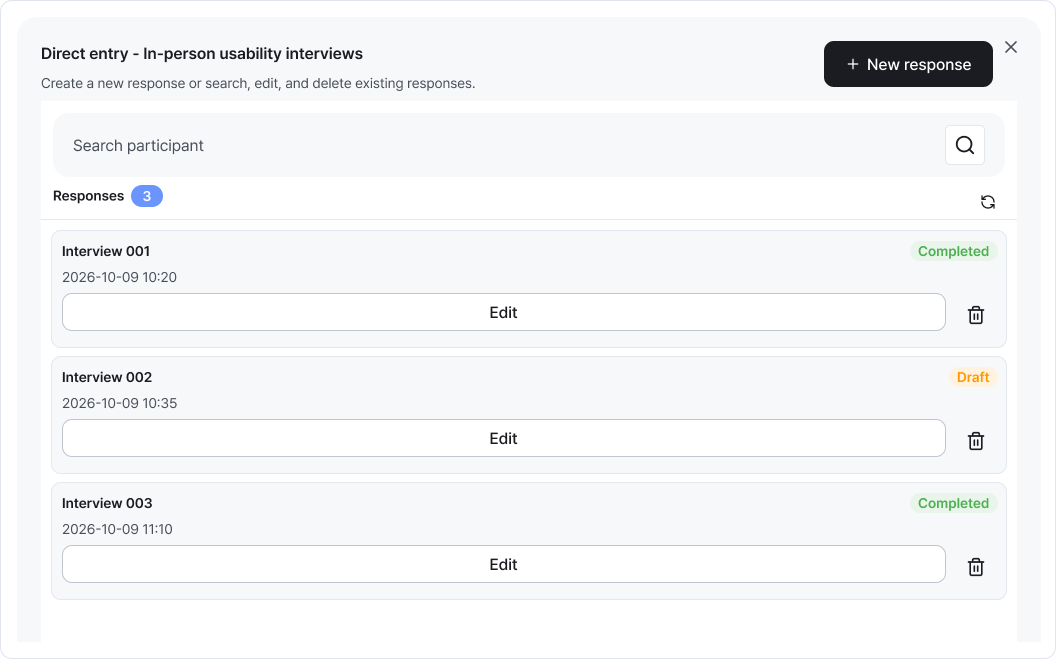
Start with the new-response action. The list below lets you find responses in progress or completed. Enlarge image ↗ -
Enter a recognizable participant name or reference
Use a name or reference such as Interview 004, up to 20 characters. Select Confirm to open the response form.
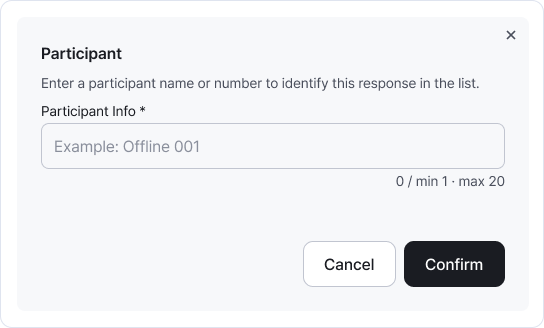
Use a name or reference that distinguishes the response. You don't need unnecessary personal details. Enlarge image ↗ -
Enter the answers and finish the form
Select or enter the participant's answers and use Next to continue. Finish the last question, then check for Completed in the list. You can then enter another response.
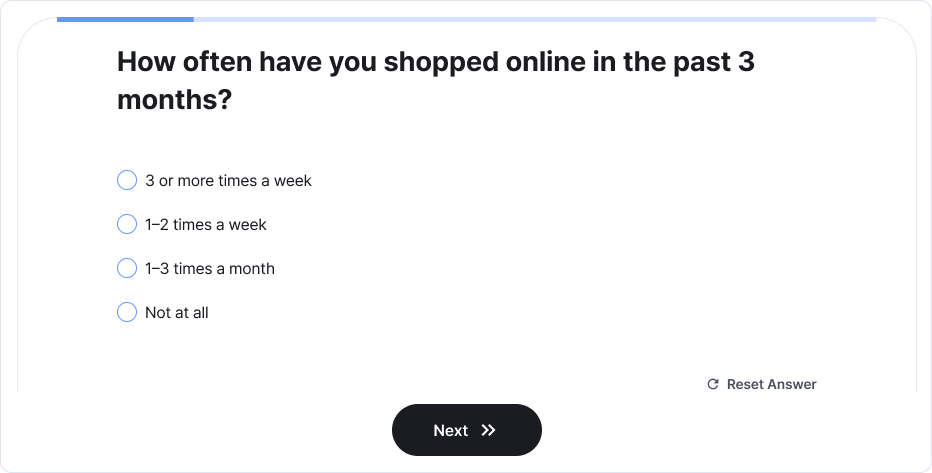
The form follows the same question order as the participant screen. Enter the recorded answers in sequence. Enlarge image ↗ -
Find and edit an existing response
Search for the participant and choose Edit. Check their details before updating the answers. Responses still in progress can be reopened to continue.
You can delete an incorrect entry, but it can't be restored. Check the participant and answers first.
Check that you're done
Check the participant and Completed status in entry management. The response also appears in Participation Status.
If you need help
Entry management missing? Check that the distribution is active.
Can't start a response? Check the participant limit. To raise it, end the distribution, make it inactive, edit and restart it.
If entry actions are missing, ask the team owner or administrator about distribution-management permissions.
Was this guide helpful?
Tell us if something was unclear or missing.
Send feedback on this guide →