Distribute research
Prepare and manage distribution
Choose how to invite people, start collecting responses and close recruitment.
The names, email addresses, and team details shown are fictional examples for illustration.
Only owners, administrators and editors can set up, start or stop distributions.
Before you start
Check questions and routing, then make your research Ready. You can also add a distribution to research that's already distributing.
Create several link, email or direct entry distributions for one research project to compare participation across channels.
Step by step
-
Select the research to distribute
Open Distribute Research in the left menu and select research at the top. Check its title and question count, then select Add distribution.
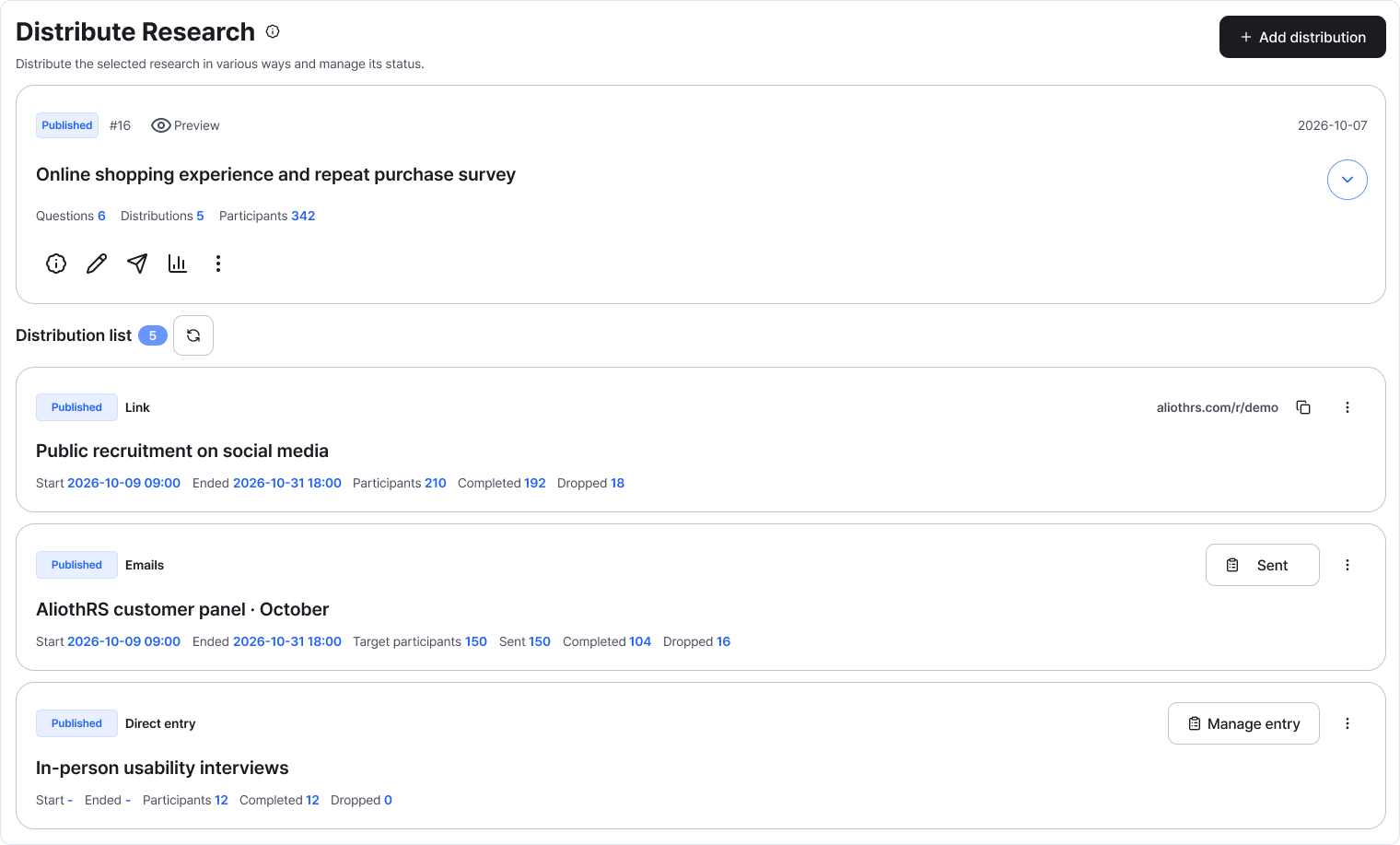
Select research at the top and start with Add distribution. The cards below show each distribution's status and participation. Enlarge image ↗ -
Choose how to reach your participants
Link: share a participation link on a website, social media or messaging app.
Email: send each contact in an address book their own participation link.
Direct entry: enter responses from in-person interviews or paper surveys yourself.
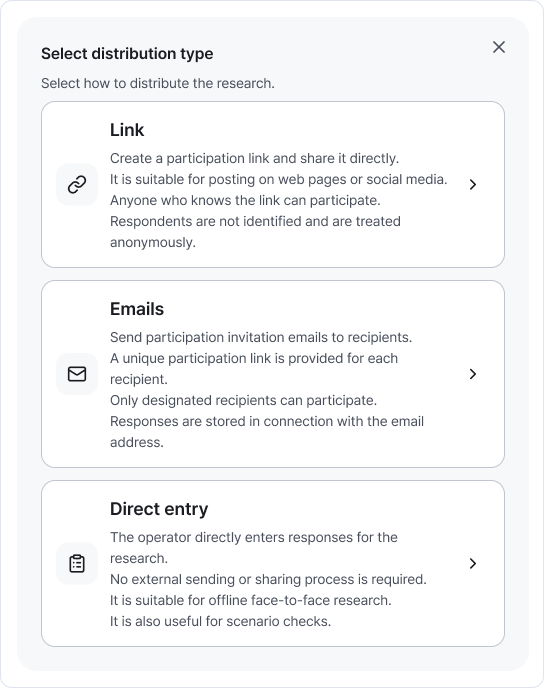
Choose the method that suits your audience. Follow each method's guide for its settings. Enlarge image ↗ -
Check the settings and start options, then save
Give the distribution a clear title and set any participation limits you need.
With immediate distribution selected, Confirm starts distribution. Email can also be scheduled. For direct entry, enable the entry form to start entering responses.
If you saved without starting, choose Start distribution from the inactive card's more menu (⋮).
-
Manage status when closing or changing a distribution
Inactive: edit the settings or choose Start distribution.
Distributing: choose End in the more menu (⋮) to close participation.
Ended: to reuse it, make it inactive, edit the settings and start again.
An active distribution can't be made inactive directly. End it first to change settings.
Check that you're done
You're ready when the distribution card appears in the list. Check that it's distributing and the participation period is correct.
If you need help
Can't add a distribution? Check whether the research is Ready or Distributing.
Email distribution won't start? Check the recipient address book and valid email addresses.
Actions missing? Ask your team owner or administrator about distribution-management permissions.
Was this guide helpful?
Tell us if something was unclear or missing.
Send feedback on this guide →