Distribute research
Share a link
Create a participation link for your website, social media or messages.
The names, email addresses, and team details shown are fictional examples for illustration.
Only owners, administrators and editors can set up, start or stop distributions.
Before you start
Select your research in Distribute Research, then choose Add distribution → Link. Use different titles for each sharing channel to compare participation later.
Step by step
-
Set a title and participation limits
Use a recognizable title such as Social media recruitment. Enable a maximum-participant limit if needed. To restrict access with a password, enable it and enter 6–16 letters and numbers. You can also add a note for participants.
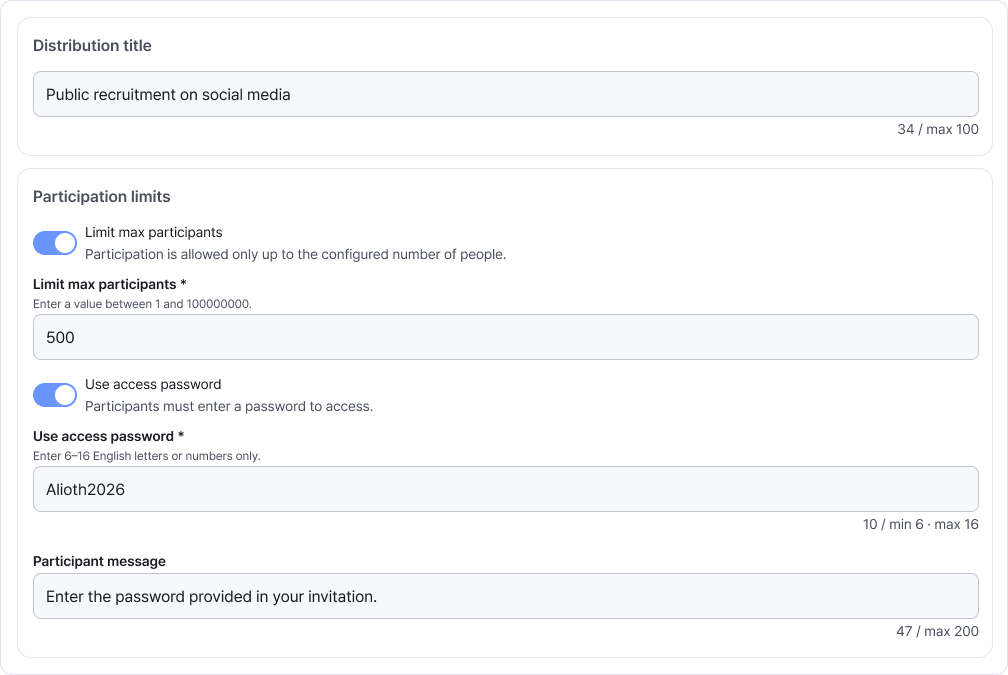
Enable only the limits you need. If you set a password, share it along with the link. Enlarge image ↗ -
Check the participation period and how to start
For a fixed recruitment period, enable the start and end date options and choose dates and times. Participation closes at the end time.
To start now, select immediate distribution and Confirm. To start later, save without that option, then choose Start distribution from the card's more menu (⋮).
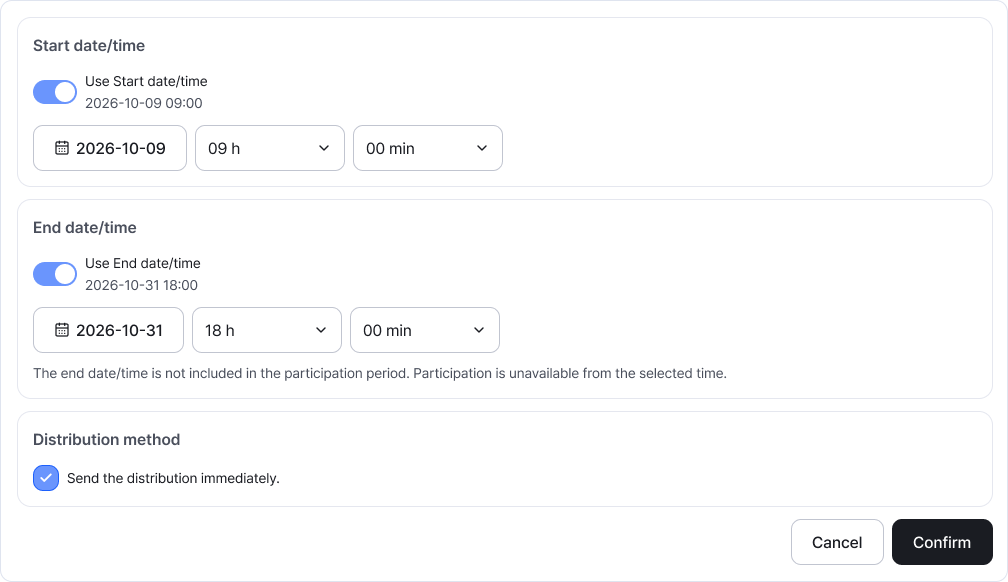
Set the dates and times for participation and decide whether to start distribution now. Enlarge image ↗ -
Copy the link from the card
Select the copy button next to the link and paste it into your invitation or message. If using a password, you can copy it from the card too.
Before sharing, check that distribution is active and the participation start time has arrived.
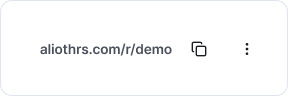
The overlapping-documents icon copies the link. The adjacent more menu (⋮) manages distribution status. Enlarge image ↗ -
Monitor participation and close recruitment
Check participation, completed and dropped-off counts on the card. Open Participation Status for detailed responses. To close recruitment, choose End in that distribution's more menu (⋮).
Check that you're done
Your copied link is ready to share. Participation depends on the distribution status, period, password and maximum-participant settings.
If you need help
Link won't open? Check for inactive or ended status, an expired period or a reached participant limit.
Need to edit the settings? End an active distribution, make it inactive, edit it, then start again.
Was this guide helpful?
Tell us if something was unclear or missing.
Send feedback on this guide →