Distribute research
Send email invitations
Invite contacts from an address book and check sending results.
The names, email addresses, and team details shown are fictional examples for illustration.
Only owners, administrators and editors can set up, start or stop distributions.
Before you start
Prepare recipients in Address book under Distribute Research. Select your research, then Add distribution → Email. Before sending, also check your remaining email allowance on the plan screen.
Step by step
-
Check the subject and recipients
The distribution title helps you identify it in Studio. The email subject is what participants receive, so make the purpose clear.
Search for and select an address book under Recipients. Contacts with valid email addresses in that book will receive the email.
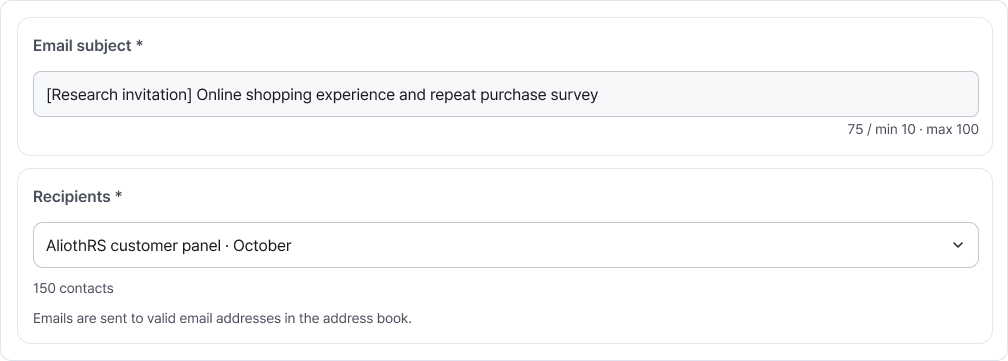
Check the subject and choose the recipient address book. Make sure it belongs to the audience you intend to invite. Enlarge image ↗ -
Write a welcoming invitation
Explain the topic and expected time. For example: Help us improve your shopping experience. We'd love to hear your feedback in this five-minute survey.
A participation link is added below the message automatically. You don't need to paste it in. If using a password, check whether to include it in the invitation email.
-
Send now or schedule for later
After choosing an address book, select immediate or scheduled distribution. For a scheduled send, choose a future date and time.
Review the recipients, subject and message, then select Confirm. Immediate distribution starts sending as soon as you confirm, so check carefully first. Selecting neither option saves an inactive distribution.
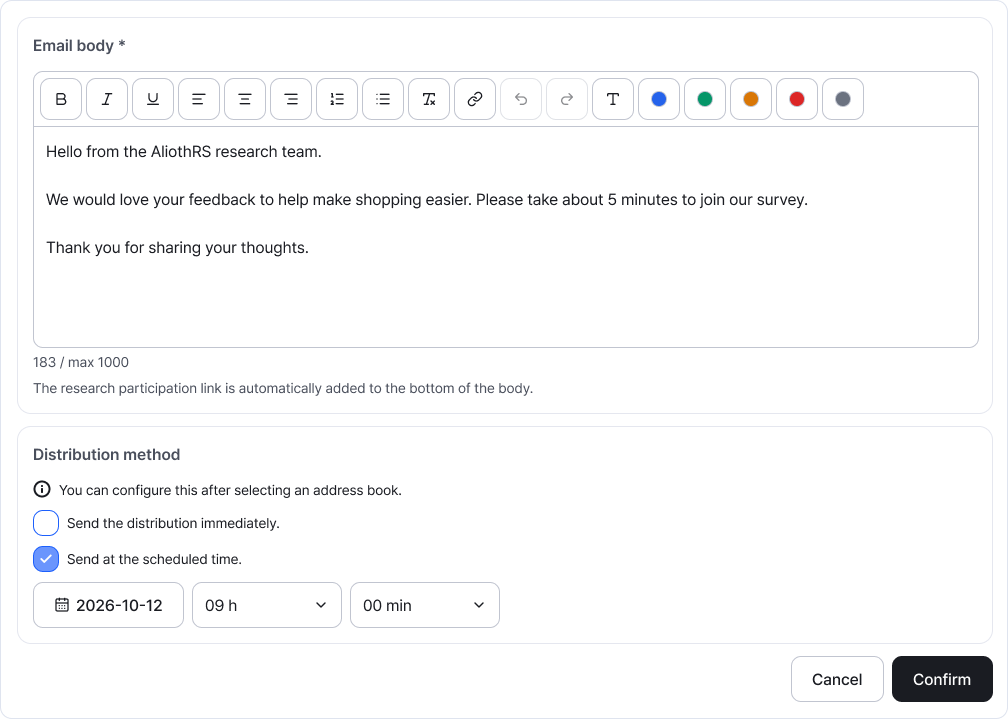
Write your message and choose when to send it. Scheduled sending is available on supported plans. Enlarge image ↗ -
Check sending results on the distribution card
Select the Scheduled, Sending or Sent button on the card to open the recipient list.
Use All, Success, Failed and Pending filters. Failed items show a reason, and you can download the filtered list as Excel. A sent email isn't a completed response; check responses in Participation Status.
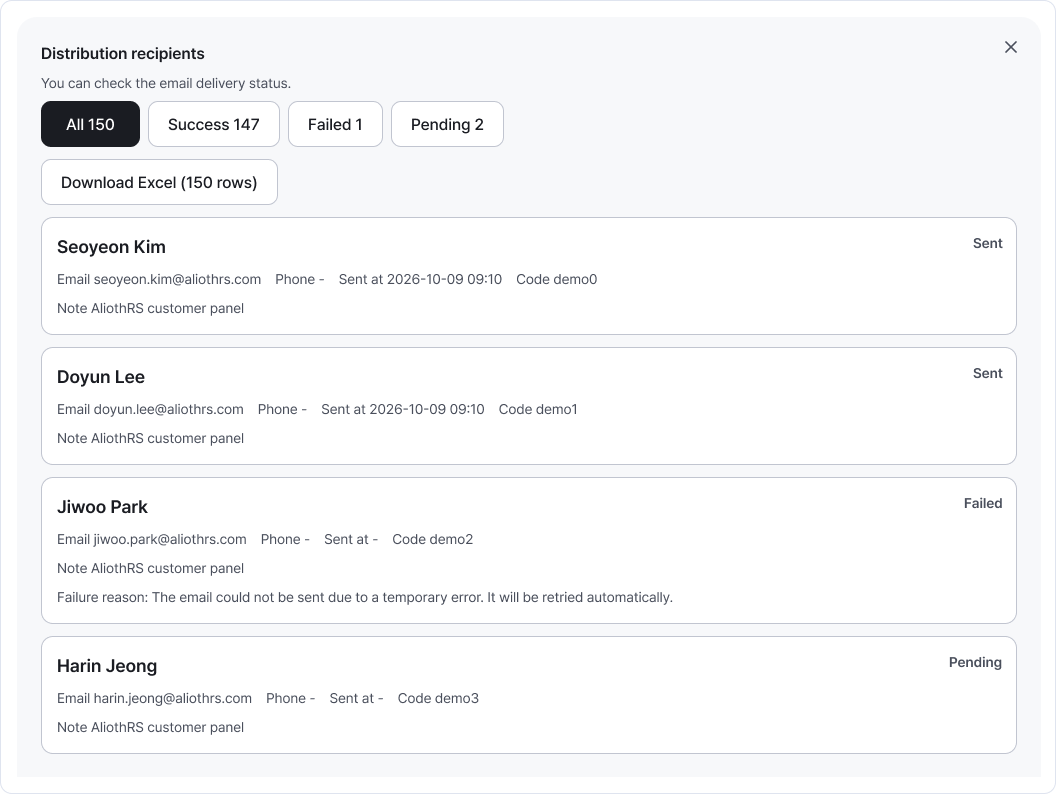
Review recipients by status and read any failure reasons. Excel downloads follow the selected filter. Enlarge image ↗
Check that you're done
The card shows the sending status. Each recipient receives an invitation with their own participation link. Check the recipient list for any failures.
If you need help
Can't select recipients? Check that an address book exists and try another search. Contacts with only a phone number aren't email recipients.
Can't schedule sending? Check the selected address book and whether your plan supports scheduling.
Want to send another invitation? Restarting the same distribution doesn't resend to people already sent an email. Create a new email distribution to send a new message to everyone.
Was this guide helpful?
Tell us if something was unclear or missing.
Send feedback on this guide →