Distribute research
Address books and contacts
Organize email recipients, add contacts or import them from Excel.
The names, email addresses, and team details shown are fictional examples for illustration.
Only owners, administrators and editors can add, edit or delete address books and contacts.
Before you start
Address books let you choose recipients for email distribution. Organize them by audience or research period, with names such as Alioth customer panel · October.
Step by step
-
Create or select an address book
Expand Distribute Research in the left menu and choose Address book. Select Add address book and enter a name. Choose an address book to see its contacts on the right. Search by name if your list is long.
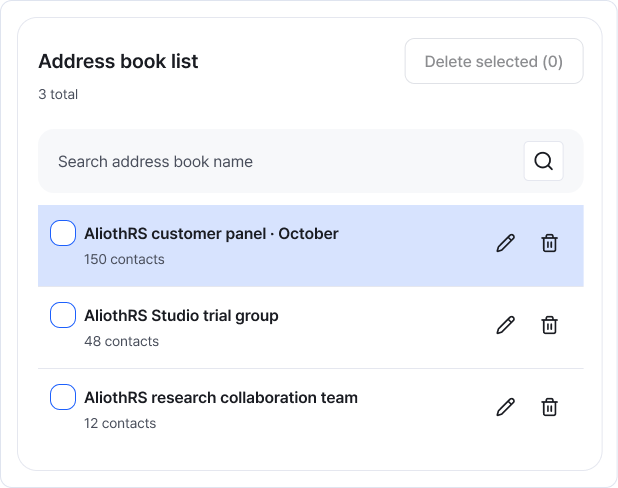
Choose the address book for your intended audience. Manage its contacts on the right. Enlarge image ↗ -
Add the contacts you want to invite
Select Add contact in the chosen address book. Enter a name and an email address or phone number. An email address is required to send an email invitation. Use Notes for details such as the recruitment group.
Select Confirm, then check that the contact appears in the list.
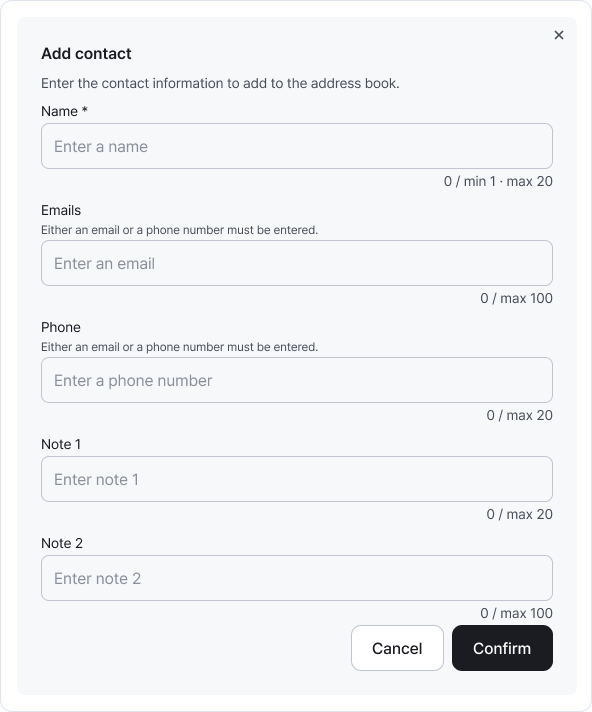
Check the email address for contacts used in email distribution. A phone number alone isn't enough to send an email. Enlarge image ↗ -
Import many contacts at once with Excel
Download the Excel template at the top of the screen. Fill it in, then choose Excel upload, select the file and name the new address book.
After import, check the valid and error row counts. Review any rows with errors in your original file.
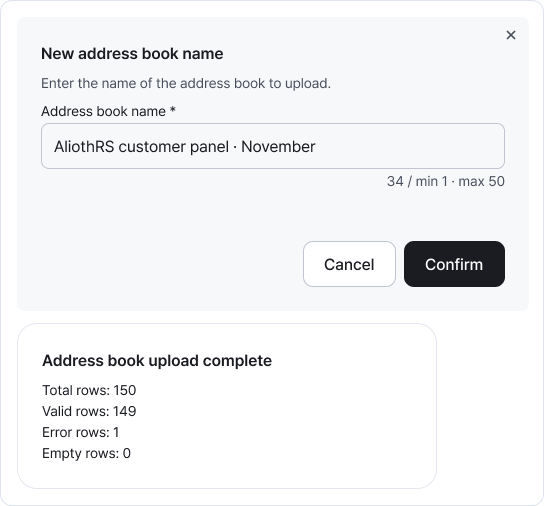
Name the new address book and check the upload result. If errors are reported, review the imported contacts. Enlarge image ↗ -
Find, update and use contacts in email distribution
Search contacts by name, email or phone number. Use Edit to update them and Excel download to save a copy.
When ready, choose this address book under Recipients in Distribute Research → Add distribution → Email.
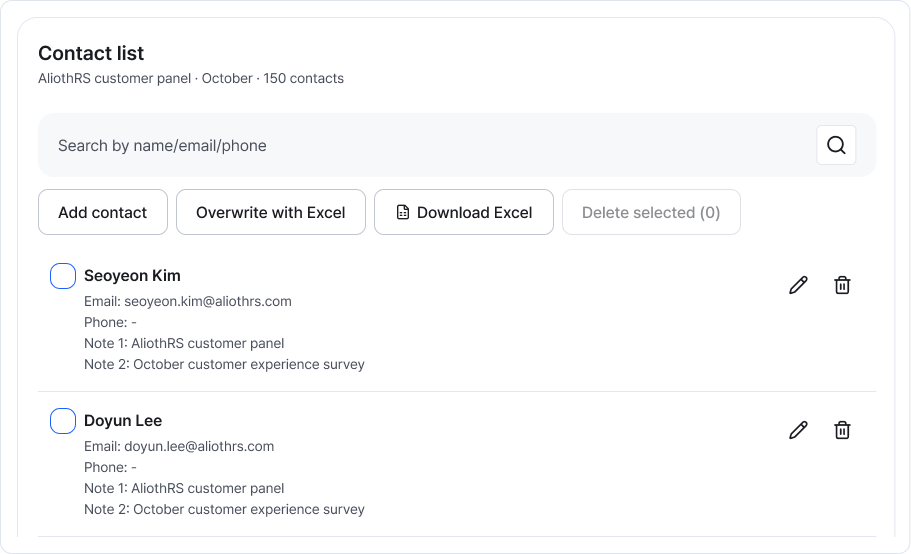
Search, add, edit and manage Excel files within the selected address book. Enlarge image ↗
Check that you're done
Once the contacts and email addresses are in the right address book, you can use it for email distribution.
If you need help
Contacts missing? Check the selected address book and search term.
Excel import failed? Use the provided template and check required fields and email formats.
Contact and recipient counts differ? Contacts without a valid email aren't included in email distribution.
Was this guide helpful?
Tell us if something was unclear or missing.
Send feedback on this guide →