Subscription & billing
Subscribing and payment methods
Choose a paid plan and update the card for an existing subscription.
The names, email addresses, and team details shown are fictional examples for illustration.
Before you start
Open Plans & billing as the billing account owner. Check your current plan and usage to help choose the right plan.
Step by step
-
Select Subscribe on the plan you need
In Monthly plans, compare STARTER, PRO and TEAM prices and limits for active research, responses and emails. Choose Compare plans for more detail.
On FREE, select Subscribe on your preferred plan. Prices are monthly USD base prices before tax. Check the final total at checkout.
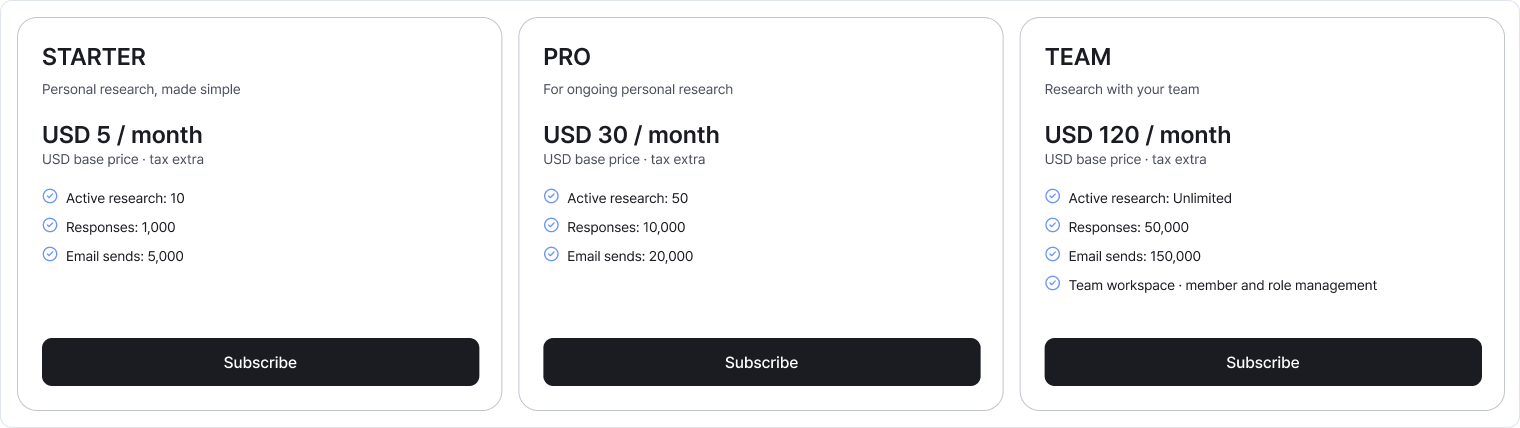
Compare the descriptions and limits, then select Subscribe below the plan you want. Enlarge image ↗ -
Confirm your billing country and required notices
Select your actual billing country and enter a postal code if required. Read the personal data sharing, international transfer and terms notices, then review all three consent items.
Once the fields and consents are complete, Continue to checkout becomes available. You can select Cancel if you need more time to decide.
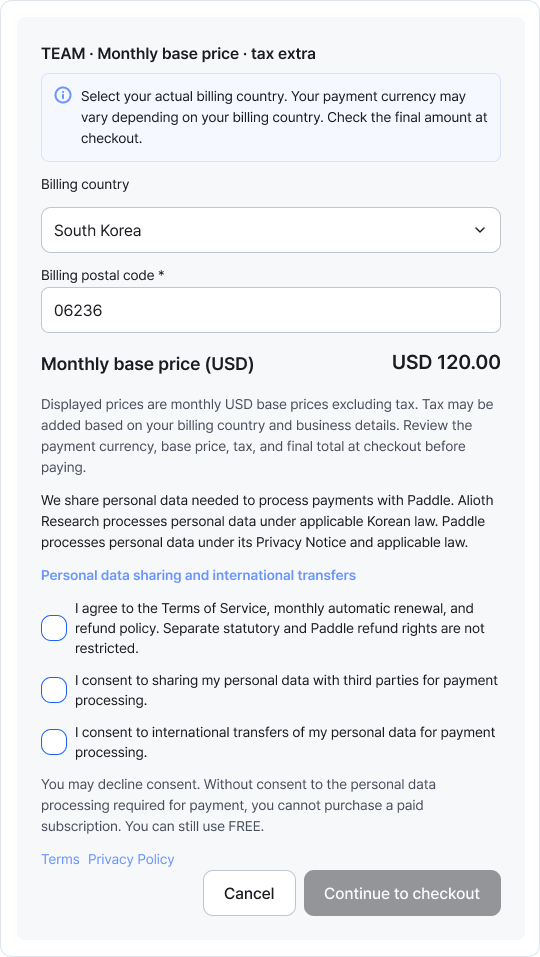
The example has South Korea selected. If the button is disabled, check required fields and all three consents. Enlarge image ↗ -
Review the total at checkout and pay
Continue to checkout opens Paddle checkout. Review the currency, base price, tax and final total before completing payment.
Back in Studio, check Current plan and Payment & refund history. If the result is still pending, use Check payment status or refresh.
-
Update the card for your subscription
In Payment method, select Change card and confirm. Complete the update in the secure checkout that opens.
This button appears when your subscription allows card changes. If access is ending or payment is overdue, check the subscription status and history first.

Change your card in Payment method, rather than the plan-selection area. Enlarge image ↗ -
Read how to switch to another paid plan
If you already have a paid subscription, select the change-instructions button on your desired plan. The notice explains how to end your current subscription and start a new one.
To switch after your current period, stop renewal, wait for the move to FREE, then subscribe to the new plan. To switch sooner, review the refund estimate and access-end conditions first.
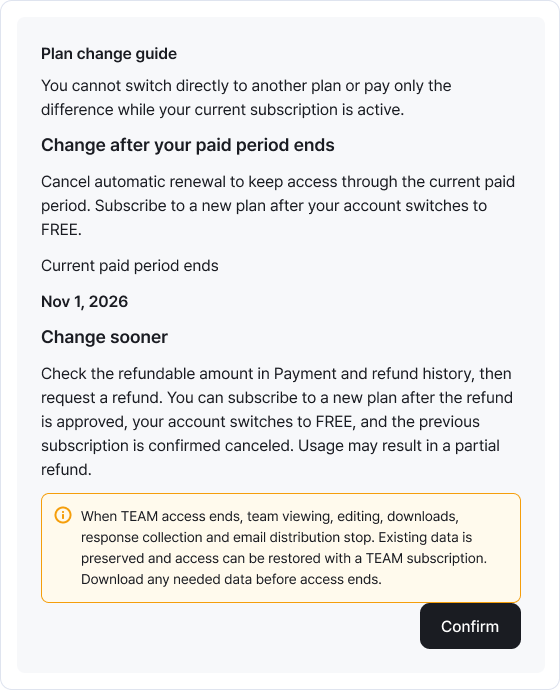
Before paying for a new plan, read the plan-change notice to decide how to finish your current subscription. Enlarge image ↗
Check that you're done
Your subscription is ready when Current plan shows your choice and payment history shows completion. For card changes, also check the secure checkout's completion message.
If you need help
Can't continue to checkout? Check the billing country, required postal code and all three consents.
Personal data notice won't load? Use the dialog's refresh action and read it again.
Notice changed? Read the new version and review the consent items again.
Subscribe is disabled? Check the subscription availability and pending-payment notices.
Was this guide helpful?
Tell us if something was unclear or missing.
Send feedback on this guide →