Subscription & billing
Payments and receipts
Check payment and refund progress and open receipts for completed payments.
The names, email addresses, and team details shown are fictional examples for illustration.
Before you start
Open Plans & billing as the billing account owner and scroll to Payment & refund history. Check each record's plan, amount and date.
Step by step
-
Check each payment's status and amount
Status labels distinguish completed payments, awaiting payment, refunds in progress, partial refunds and records needing review. For refunded payments, compare the paid amount with the approved refund.
Select Show order number to reveal the reference for a support inquiry. Copy it with the adjacent button. Select Load more, when available, to see older records.
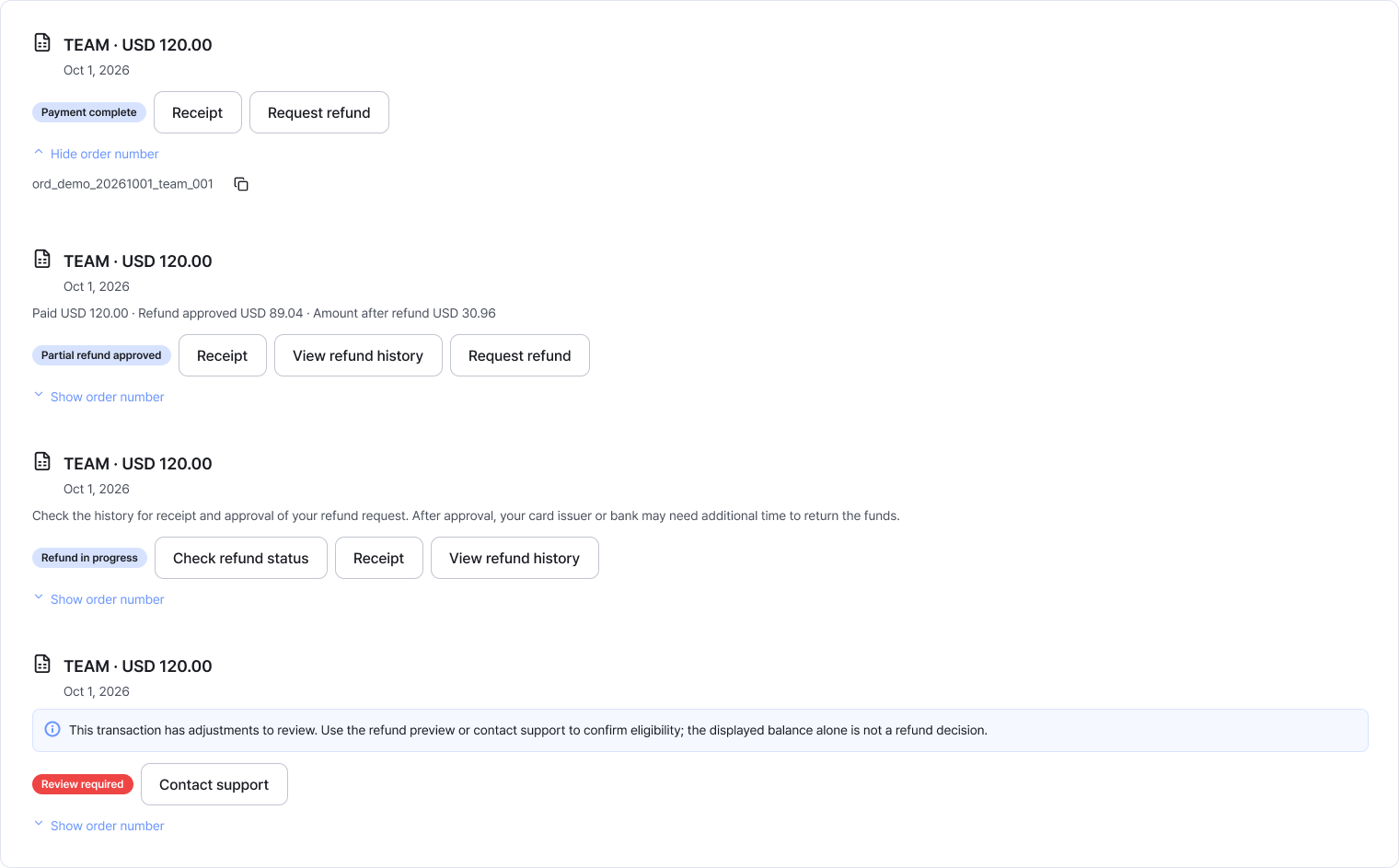
The example shows several payment and refund statuses. Available actions depend on each record's status. Enlarge image ↗ -
Resume a pending payment from its existing order
If a pending-payment notice appears at the top, select Continue payment. Use View order to find the record, or Cancel order to cancel an unpaid order.
Check the payment deadline shown in the notice. If it has passed or the result is still pending, use Check payment status to confirm the outcome.
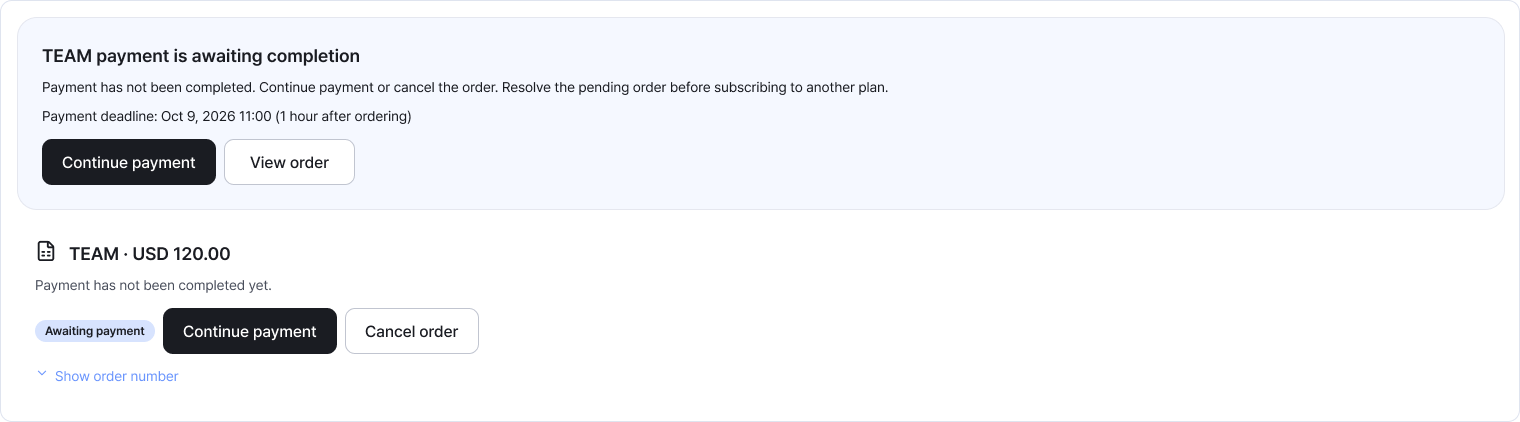
Read the pending-payment notice alongside its order record. For an expired order, follow the on-screen status-check guidance. Enlarge image ↗ -
Open a receipt for a completed payment
Select Receipt in payment history to open the receipt notice. Choose Open receipt to open the payment provider's site in a new window.
Check the amount and payment details on the receipt. If no window opens, check your browser's pop-up settings.
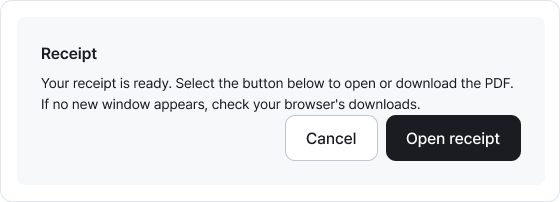
Choose Open receipt in the notice. Check refunds separately through View refund history in Studio. Enlarge image ↗ -
Review refund results and any follow-up notices
View refund history shows your request, processing status and approved amount. A record still being checked may offer Check refund status.
If a record needs review and offers Contact support, note its order number and current status before asking for help. Your card issuer or bank may need extra time to return an approved refund.
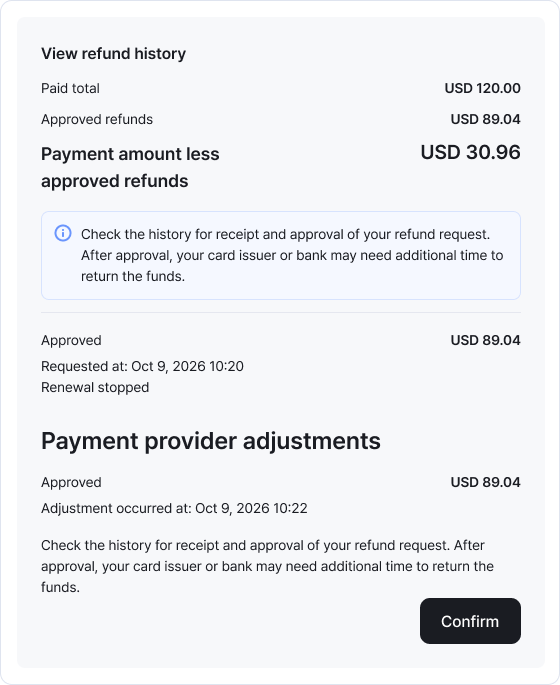
You can see both your refund request and the provider's processing history. Approval and the actual return of funds may happen at different times. Enlarge image ↗
Check that you're done
You're done when you've checked the order's status and amount and opened any receipt or refund history you need.
If you need help
Can't see the payment result? Refresh at the top right or use Check payment status on the record.
No Receipt button? First check whether payment has completed.
Can't find your refund? Open View refund history on the payment you requested a refund for.
Need further help? Contact support and include your order number.
Was this guide helpful?
Tell us if something was unclear or missing.
Send feedback on this guide →