Subscription & billing
Canceling renewal and requesting a refund
Stop your next renewal or request a refund, then check the end date and outcome.
The names, email addresses, and team details shown are fictional examples for illustration.
Before you start
Open Plans & billing as the billing account owner. Decide whether you want to stop the next renewal or also request a refund for your current payment. The steps and end dates differ.
Step by step
-
Choose Stop renewal to prevent the next payment
In Subscription settings, check the status and dates, then select Stop renewal. Read when access will end and select Confirm.
Stopping renewal prevents the next automatic renewal. You can keep using your current paid period. To receive a refund, submit a separate request.
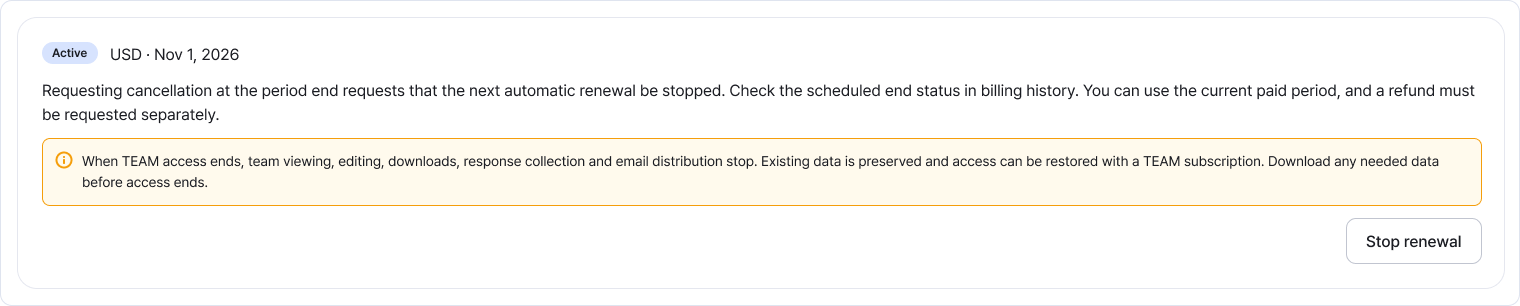
Use Stop renewal in Subscription settings. If you use TEAM, also read how ending access affects your data. Enlarge image ↗ -
Check Ending soon and your access end date
Refresh after submitting, then check Ending soon and Access until / renewal stopped in Current plan.
If you see Verifying that renewal has stopped, wait and check again. For TEAM, download any data you need before the displayed end date.
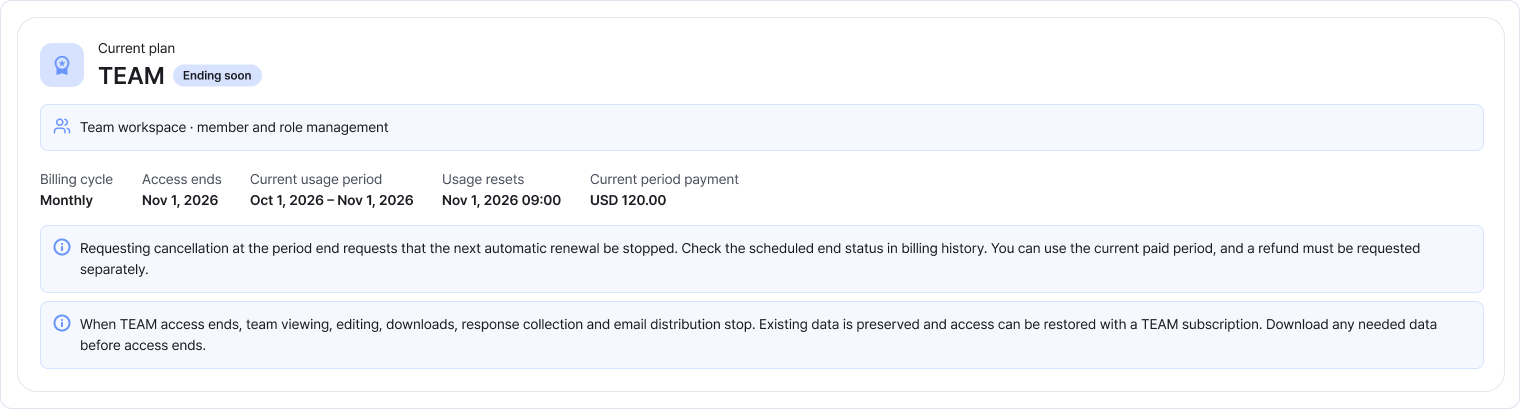
A subscription scheduled to end shows the access end date instead of Next renewal. The stop-renewal button is no longer shown once cancellation is scheduled. Enlarge image ↗ -
Review the estimated refund for your payment
In Payment & refund history, select Request refund on the payment you want to refund. Review the paid total, usage charge, approved refunds and estimated refund.
The refund breakdown shows usage for days, responses and emails. Check which calculation applies and the estimated amount. The final amount may change with usage when your request is received.
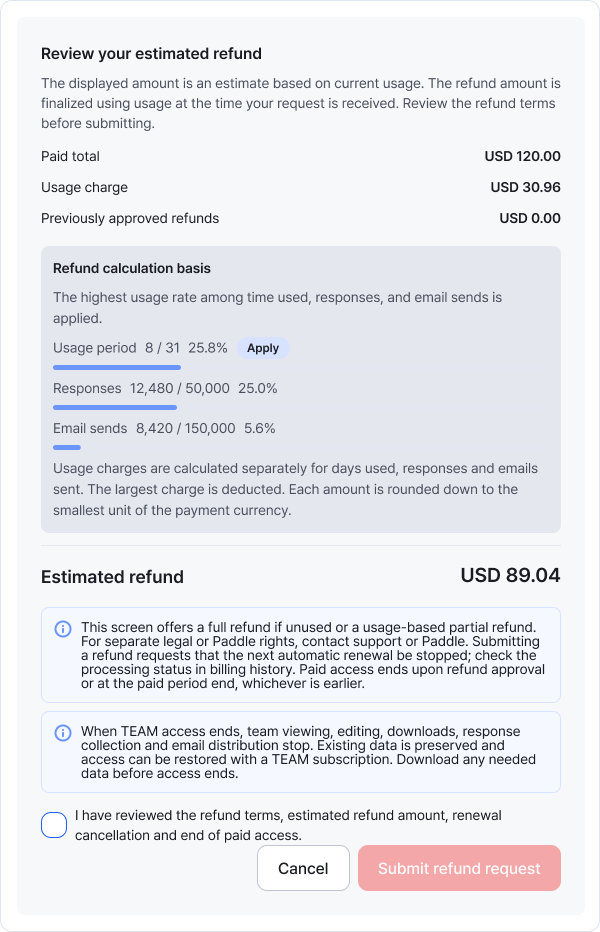
This example estimates a USD 89.04 refund from a USD 120.00 payment after a USD 30.96 usage charge. Use the amounts shown for your own payment. Enlarge image ↗ -
Read the access-end notice and submit your refund request
Read the notice about stopping renewal and ending paid access. Select the acknowledgement, then choose Submit refund request.
Paid access ends on refund approval or at the end of the current paid period, whichever comes first. When TEAM access ends, viewing, editing, downloads and domain access stop. Download needed data beforehand.
If no refundable balance remains or support needs to review the payment, follow the guidance in the dialog.
-
Check the progress of your refund
Open View refund history for the payment to check receipt, approval and amounts. If Check refund status is available, use it to get the latest result.
After approval, your card issuer or bank may take additional time to return the funds. If the payment needs attention, select Contact support on that record.
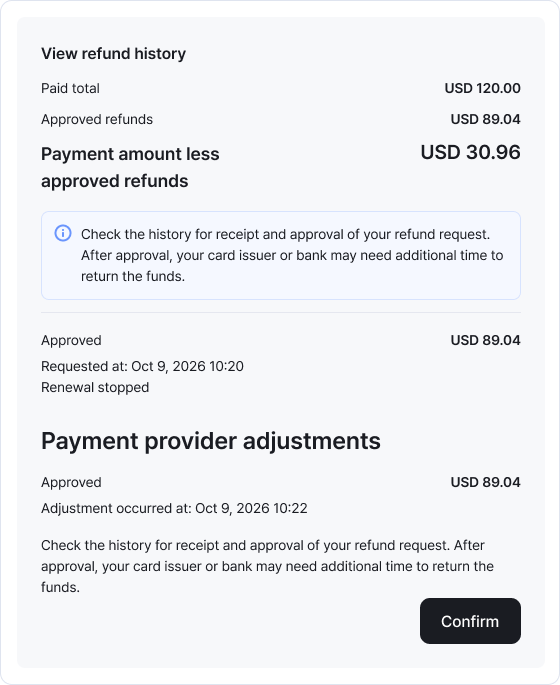
Submitting a request does not mean the funds have been returned. Check the approved amount and processing status in the history. Enlarge image ↗
Check that you're done
For cancellation, confirm Ending soon and the access end date. For refunds, confirm the request or approval status and amount. Also save any data you need.
If you need help
Can't find Stop renewal? Check whether the subscription is already ending or renewal cancellation is being verified.
Can't find Request refund? Check that payment is complete and read any refund-in-progress or review notices.
Is the estimated refund zero? Check usage charges and previously approved refunds.
Need help with the amount or processing? Select Contact support.
Was this guide helpful?
Tell us if something was unclear or missing.
Send feedback on this guide →